> ## Documentation Index
> Fetch the complete documentation index at: https://docs.kadoa.com/llms.txt
> Use this file to discover all available pages before exploring further.
# Notifications
> Get notified when workflow events occur in the Kadoa Dashboard
Notifications alert you when workflows complete, fail, or detect data changes. You can receive them via email, webhooks, or WebSockets.
Please look at event types and notifications channels before getting started, see [Notifications](/docs/notifications).
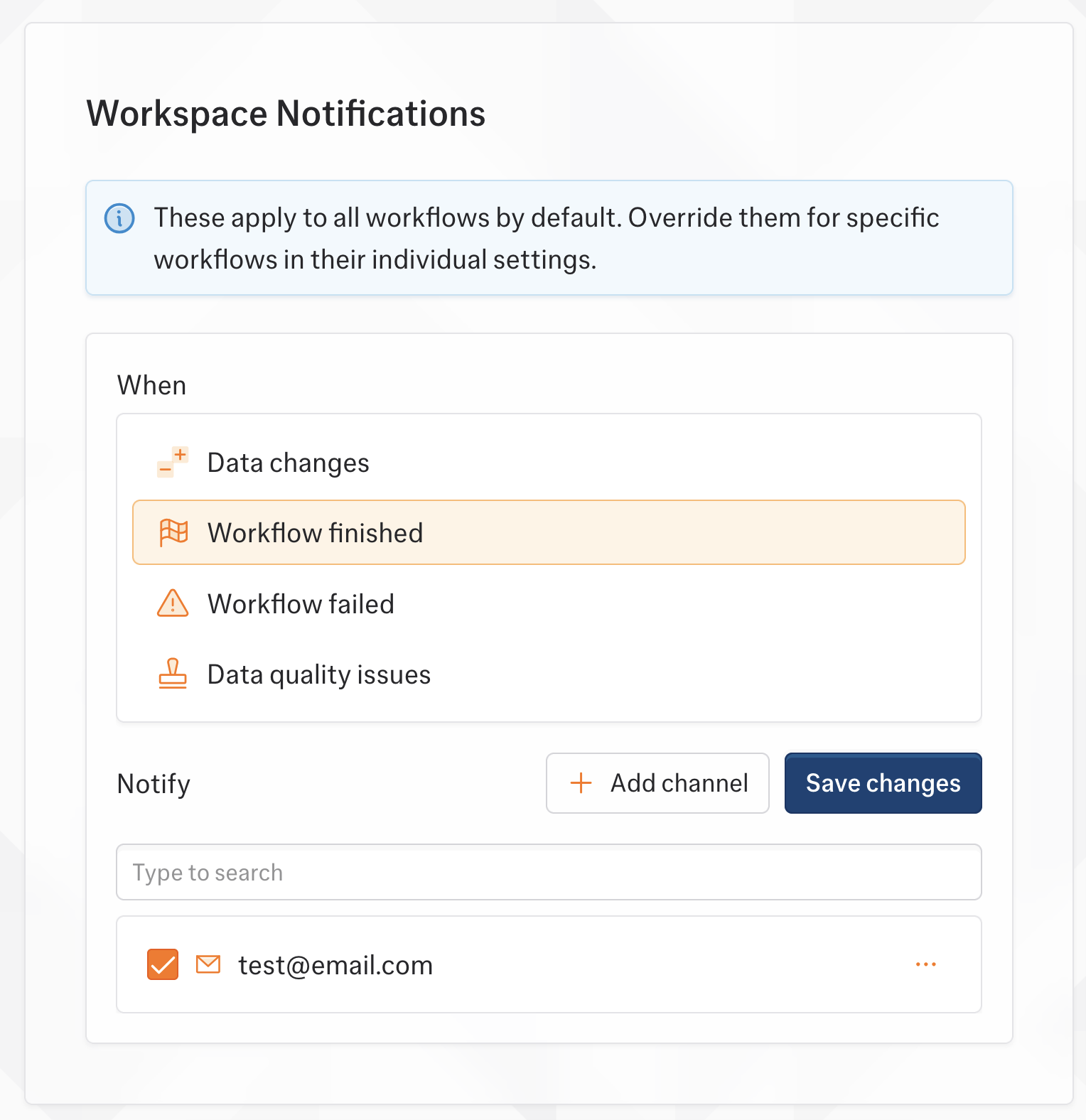
## Workspace Notifications
Set default notifications for all workflows:
1. Go to [Settings → Notifications](https://www.kadoa.com/settings?section=notifications)
2. Click **Add notification**
3. Select an **event type**
4. Choose or create a **channel**
5. Click **Save**
 ## Workflow Notifications
Set notifications for a specific workflow:
1. Open your workflow
2. Click the **Notifications** tab
3. Click **Add notification**
4. Select an **event type**
5. Choose or create a **channel**
6. Click **Save**
## Workflow Notifications
Set notifications for a specific workflow:
1. Open your workflow
2. Click the **Notifications** tab
3. Click **Add notification**
4. Select an **event type**
5. Choose or create a **channel**
6. Click **Save**
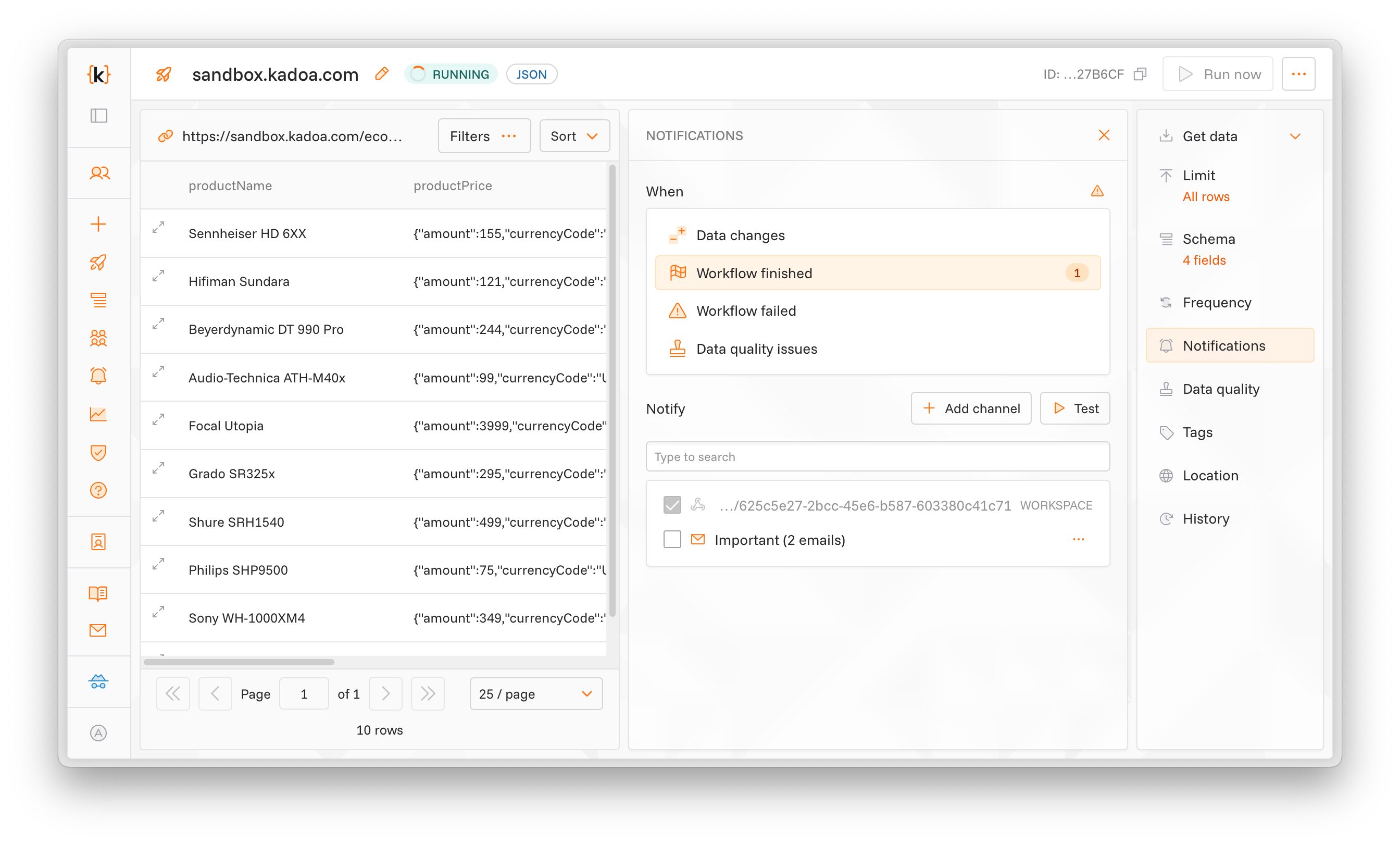 Workflow settings override workspace settings for the same event type.
## Data Change Notifications
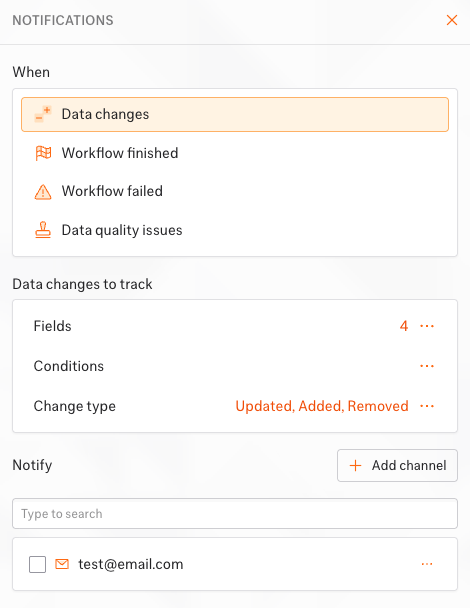
Filter what triggers `workflow_data_change` alerts:
1. Select **Data changes** as event type
2. Configure tracking:
* **Fields**: Select fields to monitor (all by default)
* **Conditions**: Add filter criteria
* **Change type**: Choose tracking for Updated, Added, or Removed data. (all by default)
3. Choose a **channel**
4. Click **Save**
Workflow settings override workspace settings for the same event type.
## Data Change Notifications
Filter what triggers `workflow_data_change` alerts:
1. Select **Data changes** as event type
2. Configure tracking:
* **Fields**: Select fields to monitor (all by default)
* **Conditions**: Add filter criteria
* **Change type**: Choose tracking for Updated, Added, or Removed data. (all by default)
3. Choose a **channel**
4. Click **Save**
 ## Template-Managed Notifications
When a workflow is linked to a [template](/docs/ui/templates) that includes notifications, the notification settings are managed through the template. To change them, edit the template or unlink the workflow.
## Testing
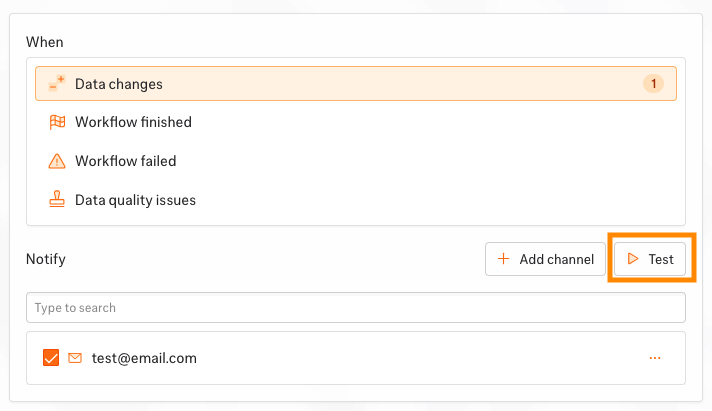
Verify your configuration works:
1. Go to the **Notifications** page
2. Select an event type
3. Click **Test**
4. Check your channel for the test notification
## Template-Managed Notifications
When a workflow is linked to a [template](/docs/ui/templates) that includes notifications, the notification settings are managed through the template. To change them, edit the template or unlink the workflow.
## Testing
Verify your configuration works:
1. Go to the **Notifications** page
2. Select an event type
3. Click **Test**
4. Check your channel for the test notification