To enable change detection, two things are required:
- Your workflow must be scheduled (hourly, daily, etc.) or set to real-time mode. Configure scheduling in the UI or via SDK/API.
- Your workflow must subscribe to the data change event. Without this subscription, change diffs will not be delivered.
Make sure both conditions are met for change tracking to function.
Workflow Modes
| Mode | How It Works | Availability |
|---|
| Scheduled | Compares data between runs (hourly, daily, weekly) | All users |
| Real-time | Continuously monitors for changes | Enterprise only |
Algorithm Overview
The change detection process follows a three-phase matching algorithm:
- Exact Matches: Objects that are completely identical (with whitespace normalization)
- Partial Matches: Objects that are similar enough to be considered the same but with changes
- Leftovers: Remaining objects classified as either new or removed
Matching Methods
Key Field Matching (Optional)
When key fields are configured in your schema, objects are matched based on these fields. ALL key fields must match for objects to be considered the same:
// Previous run
{
  "id": "12345",
  "title": "Product A",
  "price": "$100"
}

// Current run
{
  "id": "12345",           // Key field matches
  "title": "Product A Pro", // Changed
  "price": "$150"          // Changed
}
changed - ID matches, so same object with updates
Key Field Behavior:
- Key fields defined with
isKey: true in your data schema
- Common key fields:
id, url, link, sku
- If ANY key field changes, objects treated as
removed + added (not changed)
Traditional Field Matching (Default)
When no key fields are configured, objects are matched if they share >50% of their fields:
// Previous run
{
  "name": "John Doe",
  "age": "25",
  "city": "New York"
}

// Current run
{
  "name": "John Doe",     // Same
  "age": "26",           // Changed
  "city": "New York"     // Same
}
changed - Field match ratio exceeds threshold
Notes:
- Only string fields considered in ratio calculation
- Empty fields and non-string values excluded
Change Types
| Type | Description |
|---|
| Changed | Object matched but some fields differ |
| Added | Object exists in current run but no match in previous run |
| Removed | Object existed in previous run but no match in current run |
How Changes Appear
In the UI
View detected changes directly in your workflow’s run history:
- Open your workflow
- Click the History tab on the right-hand side
- Find a run with data changes
- Click on the Diff component to view changes
The diff view displays:
- Change type indicators (added, removed, changed)
- Visual diff highlighting for modified fields
- Timestamps for when changes were detected
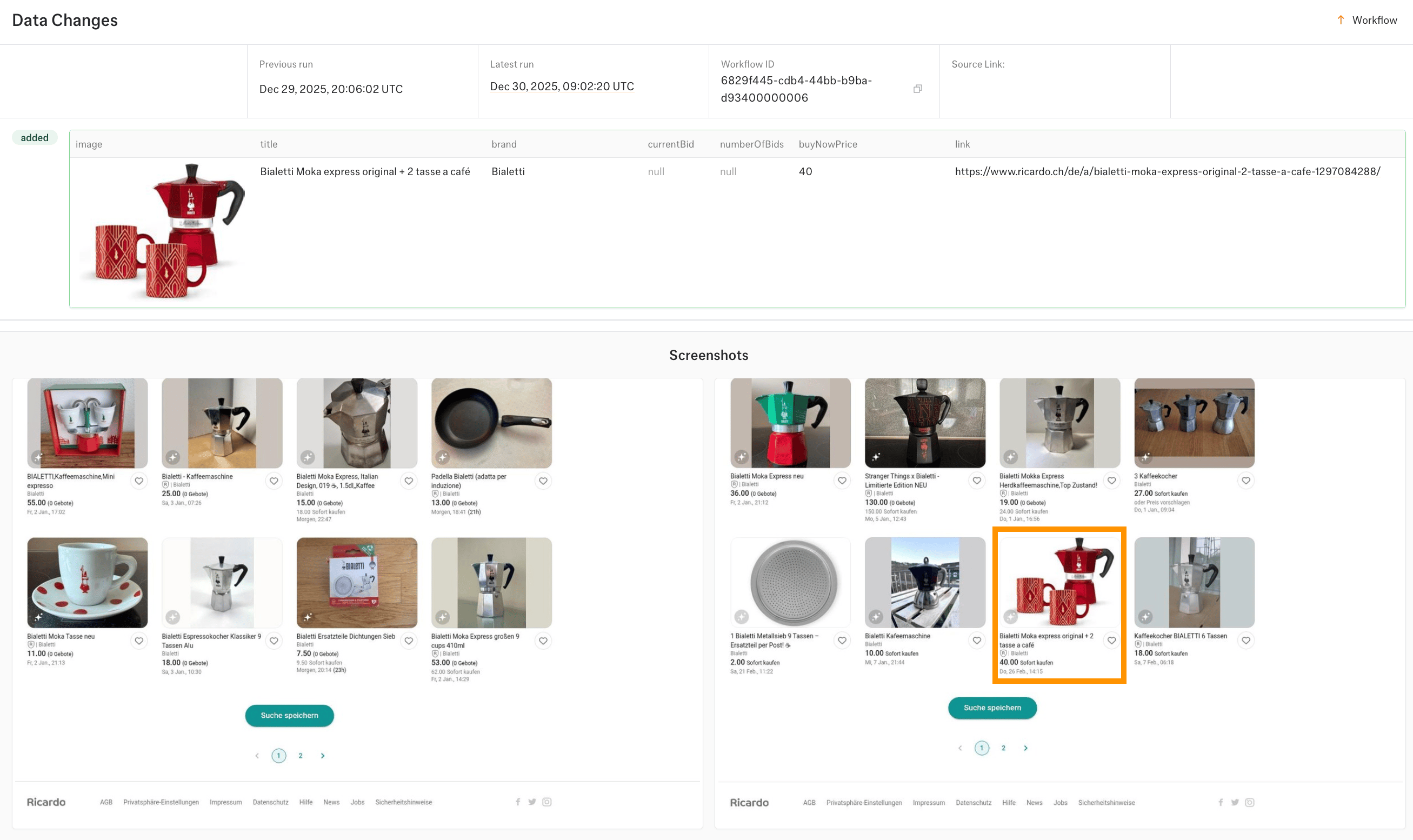 See Data Delivery for notification channels, APIs, and payload formats.
Method Comparison
| Method | When Used | Logic | Best For |
|---|
| Key Field Matching | Set isKeyField: true in schema | ALL key fields must match exactly | Reliable matching even with major content changes |
| Traditional Matching (Default) | No key fields configured | >50% of fields must match | Simple setup, works without configuration |
Setup Data Change
Fields
Select which fields from your schema to monitor. Only changes to selected fields will trigger notifications. By default, Kadoa monitor all fields.
Change Types
Choose which types of changes to track:
| Type | Description |
|---|
| Changed | Existing record was modified |
| Added | New record appeared |
| Removed | Record no longer exists |
Conditions
Add conditions to filter notifications based on field values. Combine multiple conditions using logical operators.
Logical Operators:
- Any (OR): Notify if any condition matches
- All (AND): Notify only if all conditions match
Available Operators:
| Operator | Description | Example |
|---|
contains | Field value contains text | title contains “sale” |
does not contain | Field value excludes text | title does not contain “expired” |
equals | Exact match | status equals “active” |
does not equal | Does not match | status does not equal “draft” |
greater than | Numeric comparison | price greater than 100 |
less than | Numeric comparison | stock less than 10 |
before | Date is before value | published before 2025-01-01 |
after | Date is after value | published after 2025-01-01 |
in the last | Date within N days | published in the last 7 days |
is empty | Field has no value | description is empty |
is not empty | Field has a value | price is not empty |
Date Filtering
Use before, after, or in the last operators to filter changes by date. Useful for monitoring news feeds or content where you only care about recent updates.
Your data must include a date field for date filtering to work.
- ISO:
2025-01-15 (recommended)
- US/EU:
01/15/2025, 15/01/2025
- Month names:
Jan 15, 2025
- Timestamps:
2025-01-15T10:30:00Z
Retrieve Historical Changes
View change history for your monitoring workflows.
-
Open your workflow
-
Click the History tab
-
Select a run to view its changes
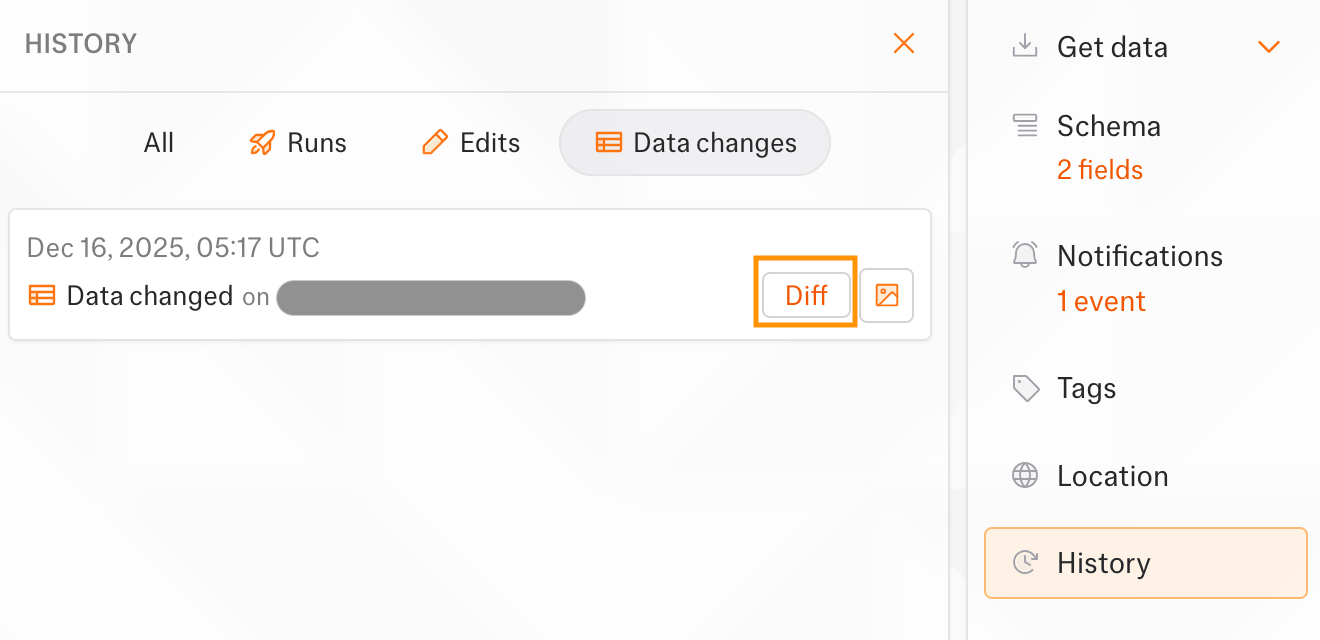
The /changes endpoint returns all historical data changes. View full API reference →GET https://api.kadoa.com/v4/changes
GET https://api.kadoa.com/v4/changes?startDate=2024-11-01T00:00:00Z&endDate=2024-11-30T23:59:59Z
differences array:{
"differences": [
{
"type": "changed",
"fields": [
{
"key": "title",
"previousValue": "Old Title",
"value": "New Title"
}
]
}
]
}
differences structure:
type: Change type (added, removed, or changed)fields: All fields of the object
Field change properties:
key: Field namevalue: Current valuepreviousValue: Previous value (only for changed type)

