

Add Team Members
Only Admins and Owners can add and remove team members.
- Open Settings from the sidebar
- Click Add members
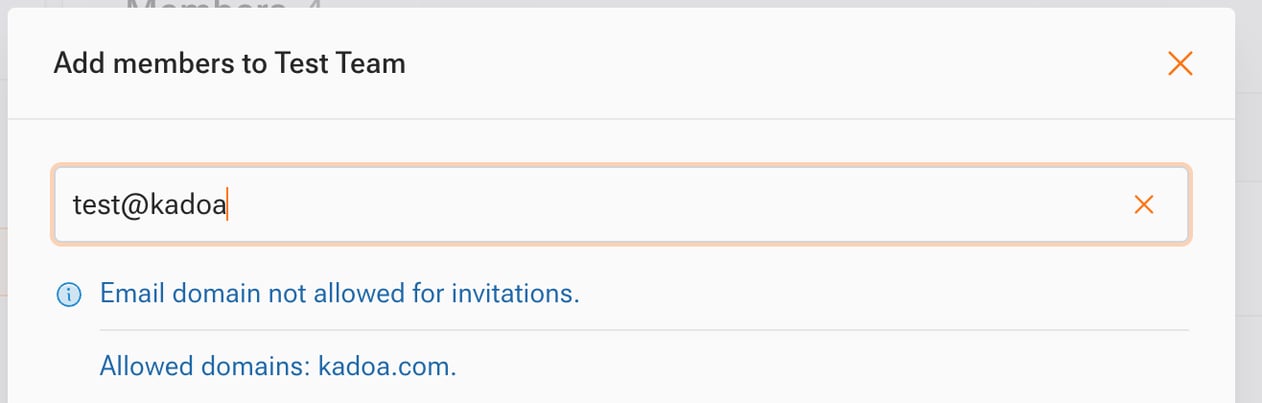
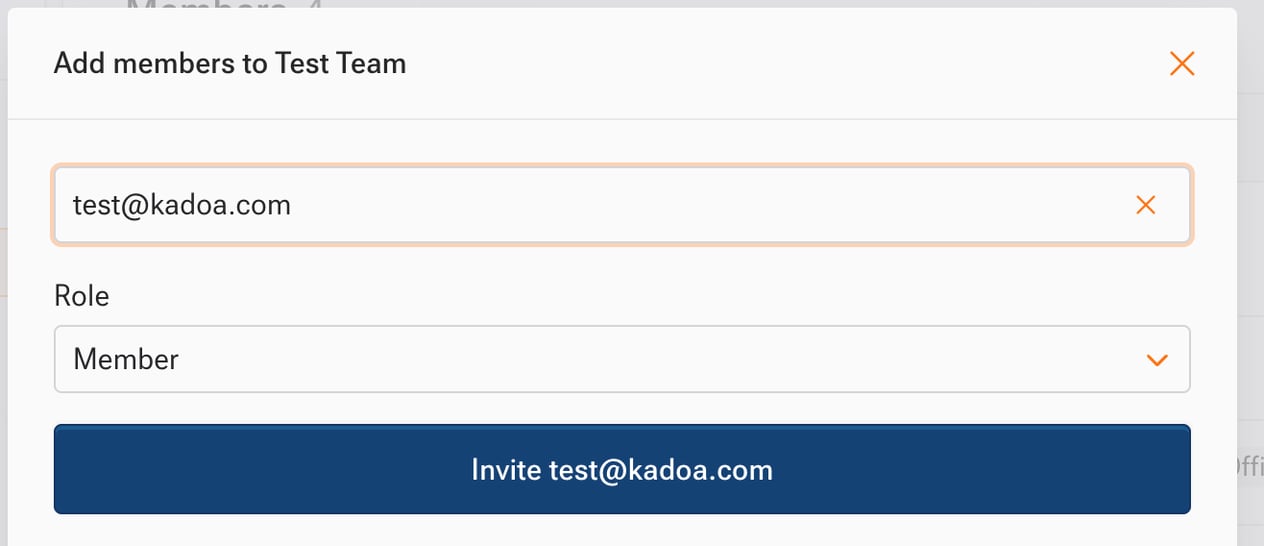
- Enter the email address of the person you want to invite
- Select their role (Member, Admin, Viewer, or Compliance Officer)
- Click Send invitation
- If the person has a Kadoa account, they receive an invitation notification
- If they’re new to Kadoa, they receive an email to create an account and join your team
- You can resend or cancel pending invitations from Settings
Manage Invitations
From Settings, you can:- Resend invitations that recipients missed
- Cancel invitations that are no longer needed
- View invitation status to see who hasn’t joined yet
Change Member Roles
- Go to Settings
- Find the team member in the list
- Click on their current role
- Select the new role from the dropdown
- Confirm the change
Remove Team Members
- Go to Settings
- Find the team member in the list
- Click the remove button (trash icon)
- Confirm the removal
Removing a team member does not delete their workflows. Workflows remain accessible to the team.