- Your workflow must be scheduled (hourly, daily, etc.) or set to real-time mode. Configure scheduling in the UI or via Code.
- Your workflow must subscribe to the data change event. Without this subscription, change diffs will not be delivered.
Workflow Modes
Both modes use the same change detection algorithm described below.
Algorithm Overview
The change detection process follows these matching rules:- Exact Matches: Objects that are completely identical (with whitespace normalization) are unchanged.
- Key Matches: When key fields are configured, objects with the same key are compared for updates.
- Leftovers: Remaining objects are classified as added or removed.
Matching Methods
Key Field Matching
When key fields are configured in your schema, objects are matched based on these fields. ALL key fields must match for objects to be considered the same:changed - ID matches, so same object with updates
Key Field Behavior:
- Key fields defined with
isKey: truein your schema - Common key fields:
id,url,link,sku - Key fields should use scalar
STRING,NUMBER, orLINKtypes - If ANY key field changes, objects treated as
removed+added(notchanged) - At least one key field is required to classify a record as
changed
Matching Without Key Fields
Without key fields, Kadoa only matches records that are exactly equal. A modified record is reported as one removed record and one added record because there is no reliable identity connecting the two versions.removed record and one added record. To receive a single changed record instead, configure id or another stable field with isKey: true.
Change Types
How Changes Appear
In the UI
View detected changes directly in your workflow’s run history:- Open your workflow
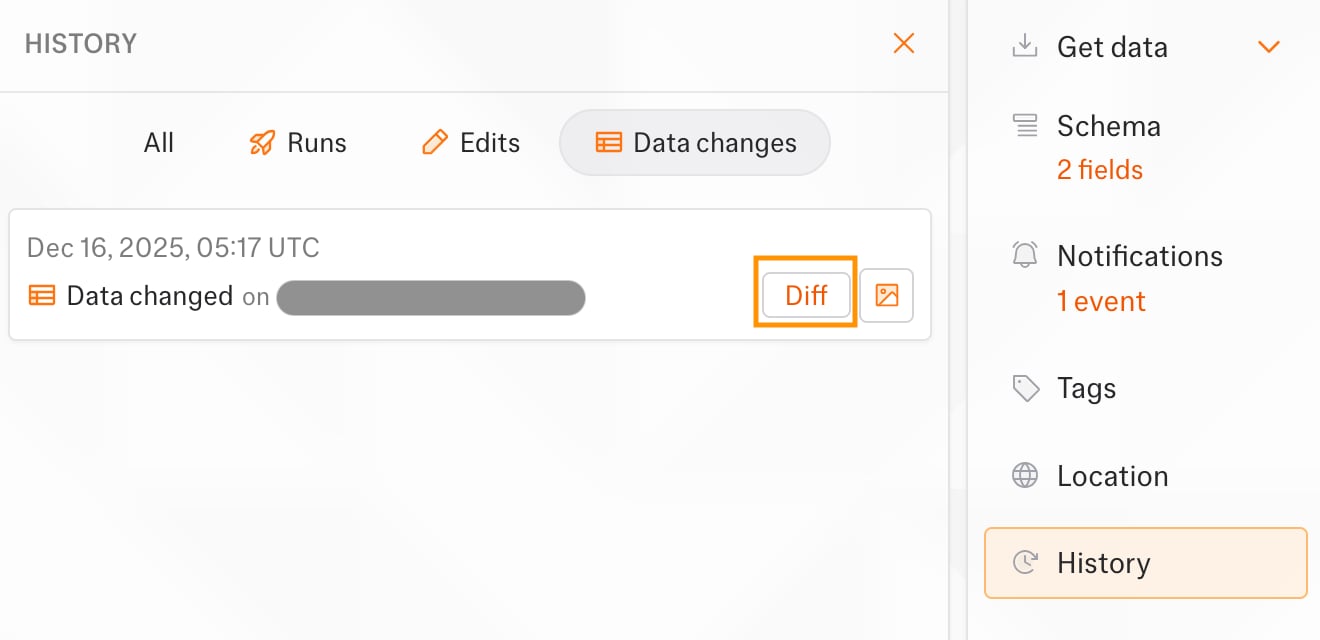
- Click the History tab on the right-hand side
- Find a run with data changes
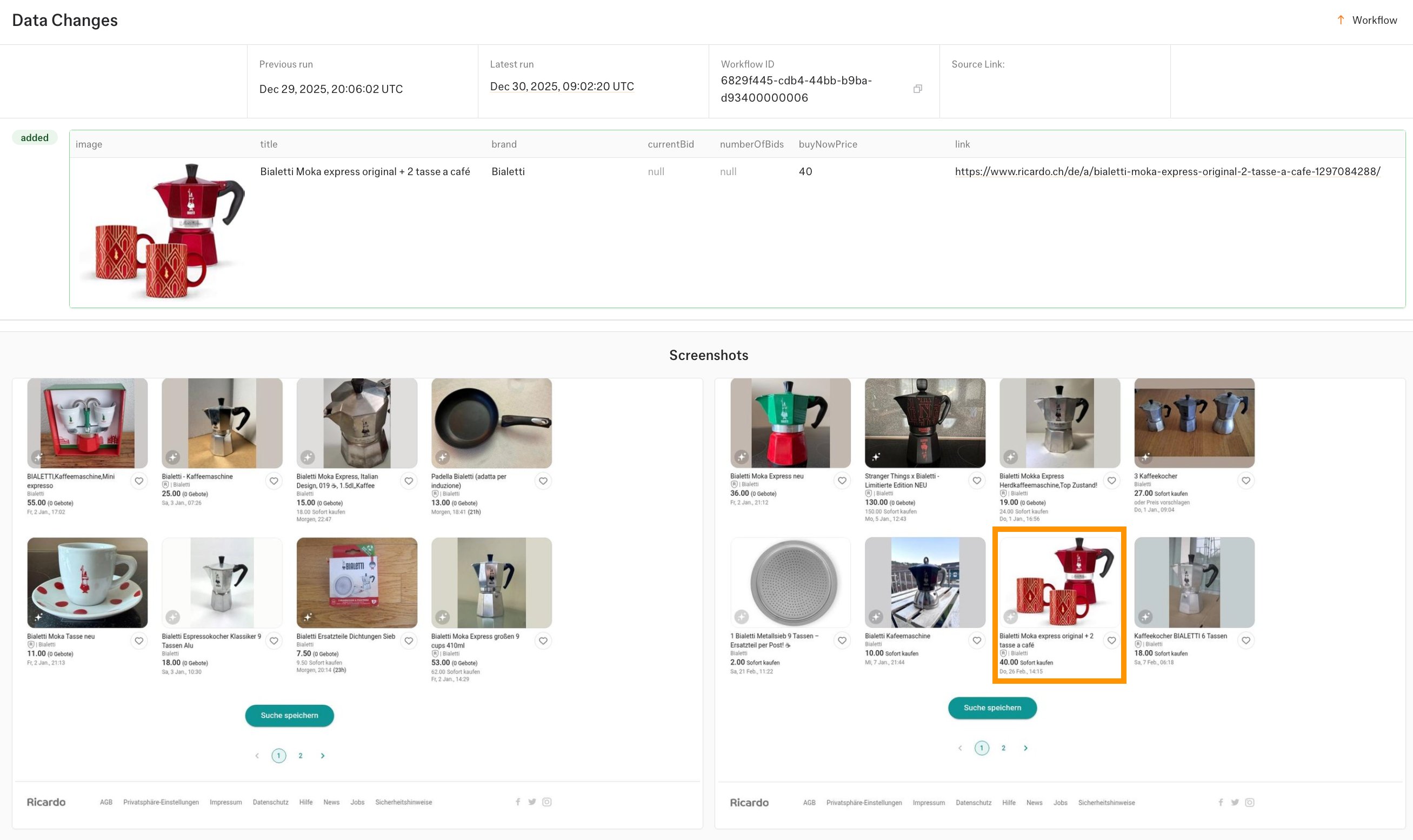
- Click on the Diff component to view changes
- Change type indicators (added, removed, changed)
- Visual diff highlighting for modified fields
- Timestamps for when changes were detected
Method Comparison
Setup Data Change
Fields
Select which fields from your schema to monitor. Only changes to selected fields will trigger notifications. By default, Kadoa monitor all fields.Change Types
Choose which types of changes to track:Conditions
Add conditions to filter notifications based on field values. Combine multiple conditions using logical operators. Logical Operators:- Any (OR): Notify if any condition matches
- All (AND): Notify only if all conditions match
Date Filtering
Usebefore, after, or in the last operators to filter changes by date. Useful for monitoring news feeds or content where you only care about recent updates.
Your data must include a date field for date filtering to work.
- ISO:
2025-01-15(recommended) - US/EU:
01/15/2025,15/01/2025 - Month names:
Jan 15, 2025 - Timestamps:
2025-01-15T10:30:00Z
Retrieve Historical Changes
View change history for your monitoring workflows.- UI
- API
- Open your workflow
- Click the History tab
-
Select a run to view its changes