

1. Research sources
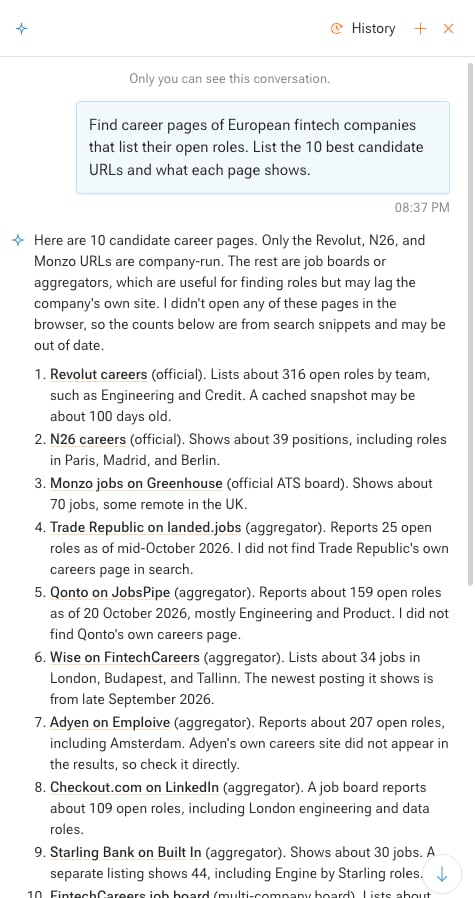
Ask Kadoa’s agent to find sources in Workspace chat. It searches the web and lists candidate URLs, with what each page shows.- Select Agent in the bottom-right corner of any page, then select Workspace.
- Describe the data, for example “Find career pages of European fintech companies that list open roles.”
2. Create the template
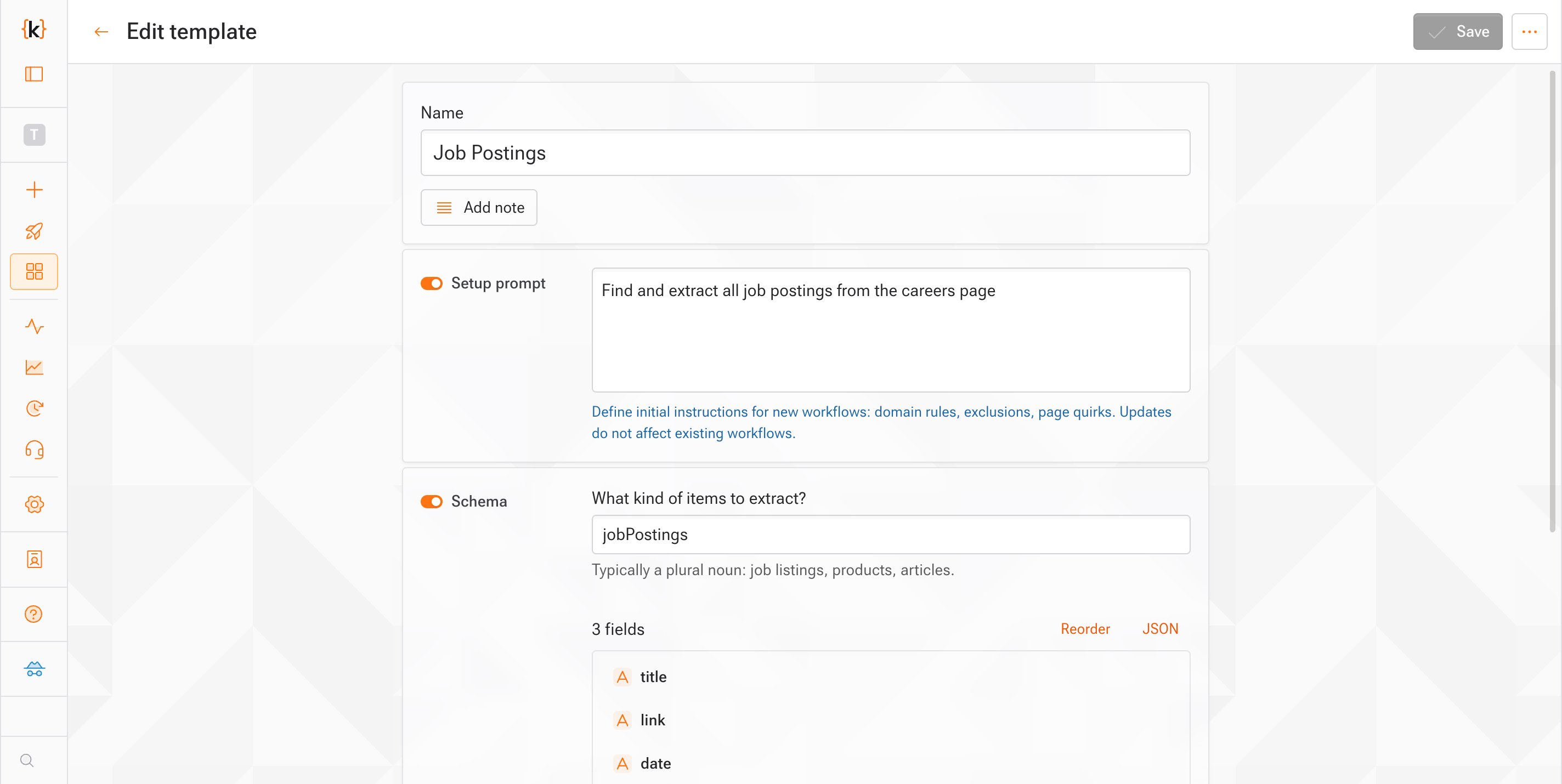
A template holds what every source shares: the setup prompt, schema, key field, data quality rules, and schedule. Create it in one of two ways:- From scratch: select Templates in the sidebar, then Create template. Turn on the parts the template should manage and fill them in. See Create a template.
- From one source: build a workflow for one career page with Add workflow, and fix the sample with the agent until it’s right. Then open the workflow menu (…), select Save as template, choose the parts every source should share, and select Create template. Use this when you want to see real data first.
- The setup prompt says what a record is, such as “Each row is one job posting.” It has no URLs.
- Each field has a short description and the narrowest type, such as
DATEfor the posted date. - The key field is stable, such as the posting URL.
- Data quality rules are ones every source can pass.
3. Test on a few sources
A clean ten-row preview does not prove a full run holds up. Test the template on a few sources that look different from each other, such as one company site and one job board.1
Create the test workflows
Select Add workflow, select Template below the prompt, and pick your template. Under Workflow-specific instructions, add the source URL. Repeat for each test source.
2
Approve and run
Approve each preview and let each workflow finish one full run.
3
Compare with the live sites
Check that the row count matches the site, required fields are filled, and the agent reached the detail pages the schema needs.
4
Fix the template
Change the template, publish the new version, and apply it to the test workflows. See Publish and apply a new version.
A setup prompt change only reaches workflows built after it. Settle the prompt during testing, before you scale.
4. Scale to all sources
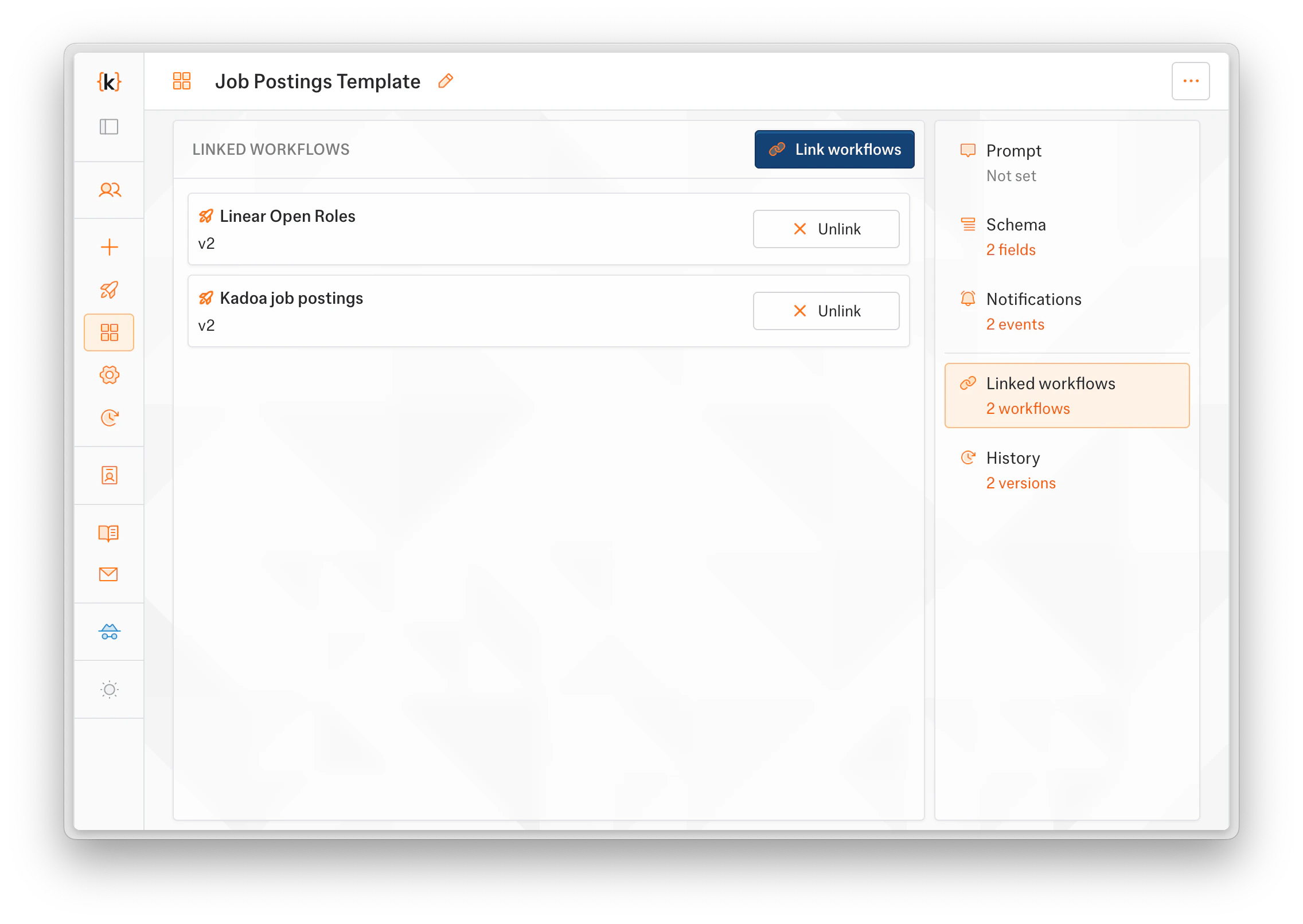
When the test sources look right, create one workflow per remaining website. Each one links to the template, so a new template version reaches every source when you apply it.- Dashboard
- SDK & API
- MCP
In Workspace chat, name the template and the websites in one message, for example “Create workflows from the Job Postings template for acme.com/careers, globex.com/jobs, and initech.com/open-roles.” The agent creates one workflow per website and reports any failures.
5. Deliver to your tools
Send the dataset to the tools you already use. This example uses Snowflake. Integrations lists the other destinations. A destination belongs to your team and can deliver all of its workflows or a selected set. Set it up once for the whole dataset.1
Request the destination
Open any workflow and select Pipeline in the side rail. Choose Deliver, select Add under Destinations, then select Set up next to Snowflake. Fill in the prefilled Support Center request and submit it.
2
Import the share
Import the share in Snowsight and send Kadoa the verification code. Snowflake has the steps and the role you need.
3
Query the views
Each run arrives about 5 minutes after it completes. Each workflow has its own read-only views, named in
WORKFLOW_SCHEMA_VERSIONS. Optional views include TPL_<GENERATED_ID>__LATEST for template data.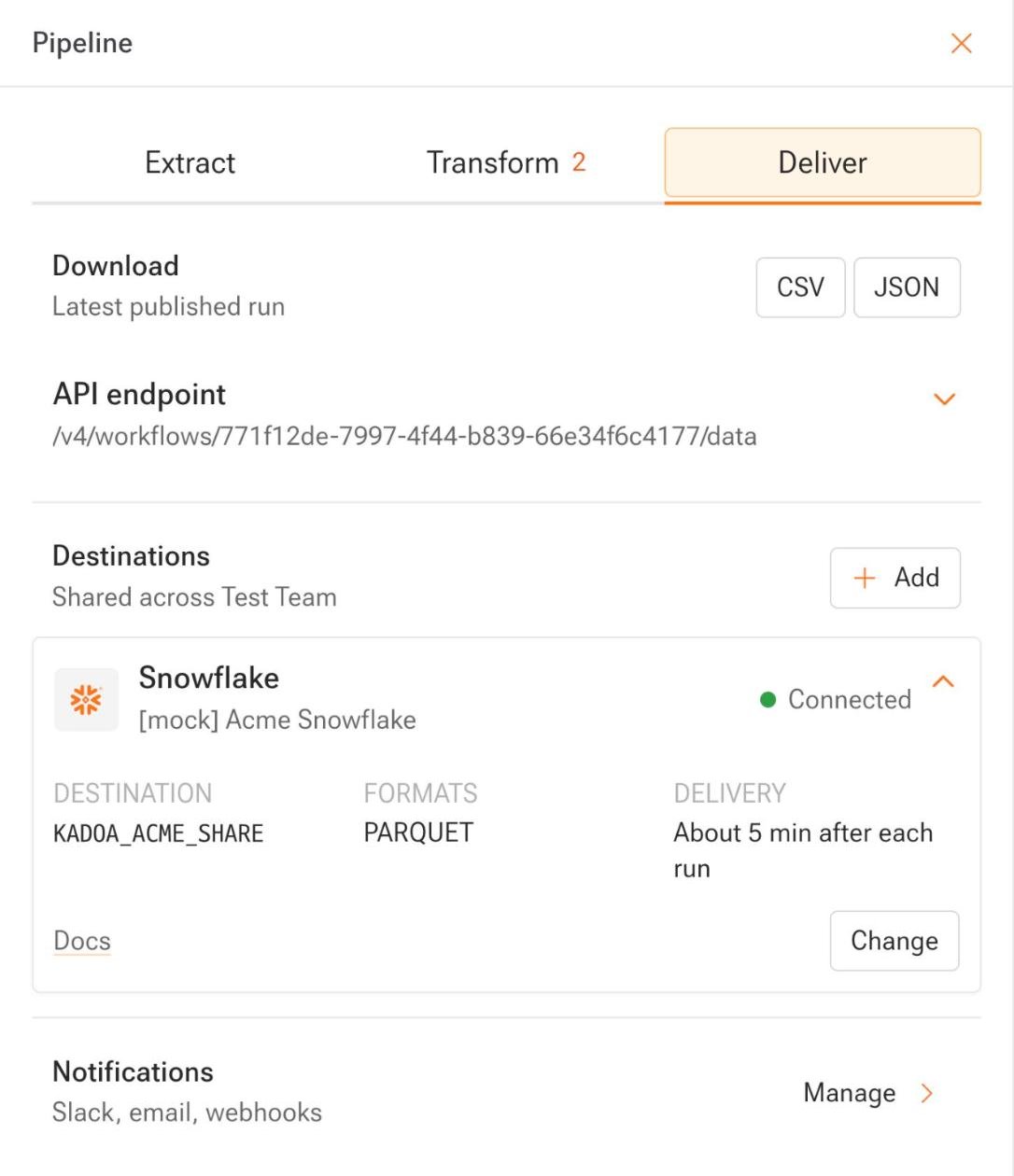
Keep the dataset healthy
- Data quality rules in the template guard every linked workflow at once. See Data quality.
- Check each new source’s first full run against the live site.
- Subscribe a channel to Workflow health to hear about failed runs. Set it as a team default in Settings > Notifications, or add it to the template. See Notifications.