

For individual access using your own Kadoa account, see MCP Server setup →.
Setup
-
In Kadoa, open Settings → General → MCP service connector.
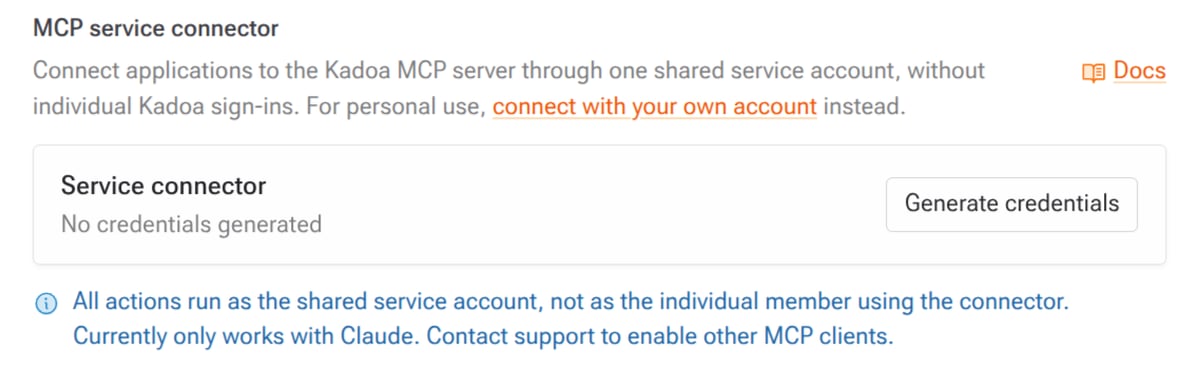
-
Select Generate credentials and copy the MCP server URL, OAuth client ID, and OAuth client secret. The secret is shown once.
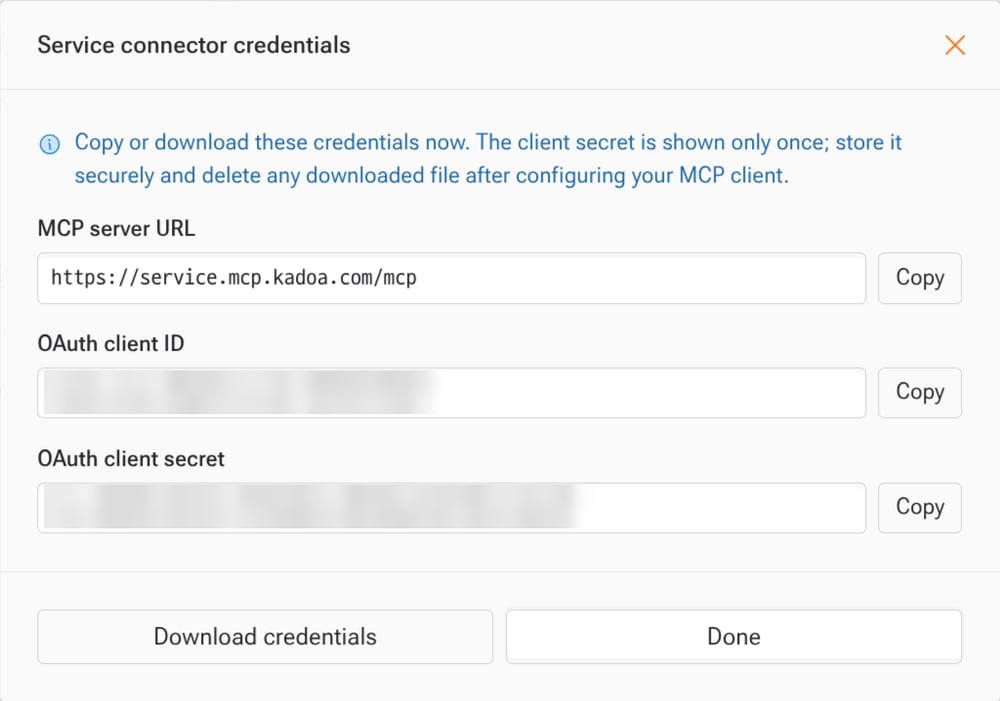
- A Claude organization owner opens Organization settings → Connectors, clicks Add, and chooses Custom → Web.
-
Enter a name (for example
Kadoa) andhttps://service.mcp.kadoa.com/mcp, then paste the OAuth client ID and secret under OAuth client. - In the connector’s tool settings, allow only the tools that organization members should use.
- Organization members open Customize → Connectors, find the custom connector, and select Connect.
How it works
The connector is an OAuth client (a client ID and secret) registered with Kadoa for your workspace. When an organization member selects Connect in Claude, the OAuth handshake completes silently againsthttps://service.mcp.kadoa.com/mcp, with no Kadoa login or consent screen. The resulting session acts as your workspace’s shared service account.
- The service connector uses a separate hostname from the personal connector at
https://mcp.kadoa.com/mcp, so users can configure both side by side. - All members share the same service-account identity and team, and team switching is unavailable.
- Each workspace has at most one active connector.
The service connector acts as the workspace service account: every tool call runs under the shared service account and its team, and workflow history records the service account, not the individual member who ran the action. If you need per-user attribution, use the personal connection.
Supported clients
Claude (Team and Enterprise custom connectors) is supported today. Other MCP clients need their OAuth redirect URI registered with Kadoa first. Contact support to enable one.Manage access
- The client secret is shown once, at generation or rotation. Store it securely.
- To rotate credentials, select Rotate secret in Kadoa, replace the secret in Claude’s connector settings, and reconnect. Rotation immediately invalidates tokens issued with the previous secret.
- To stop all access immediately, select Revoke connector.
- To limit what members can do, restrict the allowed tools in the MCP client’s connector settings.