Create a Template
- Go to Templates and click Create template
- Enter a name for your template
- Configure the parts you want to include:
- Prompt: Enter the setup instructions new workflows start with: domain rules, exclusions, page quirks. Type
$to insert a variable. - Schema: Define fields and entity name using the schema editor
- Data quality: Define per-field validation rules
- Notifications: Add event subscriptions and choose notification channels
- Frequency: Set how often linked workflows run, optionally on weekdays only
- Record limit: Cap the number of rows each run keeps
- Prompt: Enter the setup instructions new workflows start with: domain rules, exclusions, page quirks. Type
- Click Save changes to publish the first version
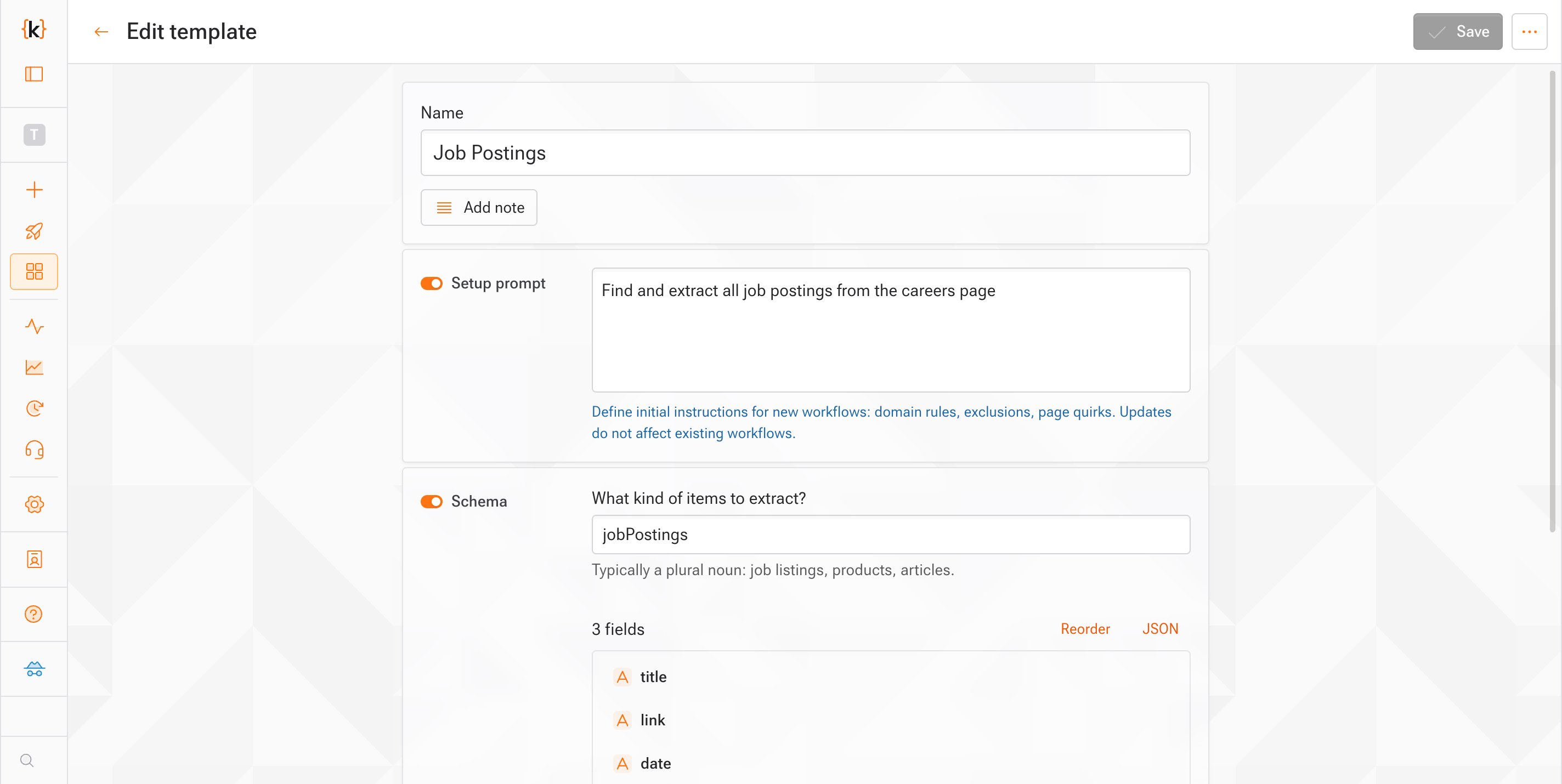
You don’t need to fill in all parts. A template can include any combination of prompt, schema, data quality, notifications, frequency, and record limit.
Save a Workflow as a Template
You can create a template from an existing workflow’s configuration:- Open the workflow you want to use as a starting point
- Click the actions menu and select Save as template
- Choose which parts to include (prompt, schema, data quality rules, notifications, frequency, row limit)
- Enter a name and click Save
Edit a Template
- Go to Templates and click on a template
- Make your changes in any of the parts
- Click Save changes
Prompt changes apply to workflows created after the new version. Workflows that have already been built keep the setup instructions they started with. The other parts roll out to existing workflows when you apply the version.
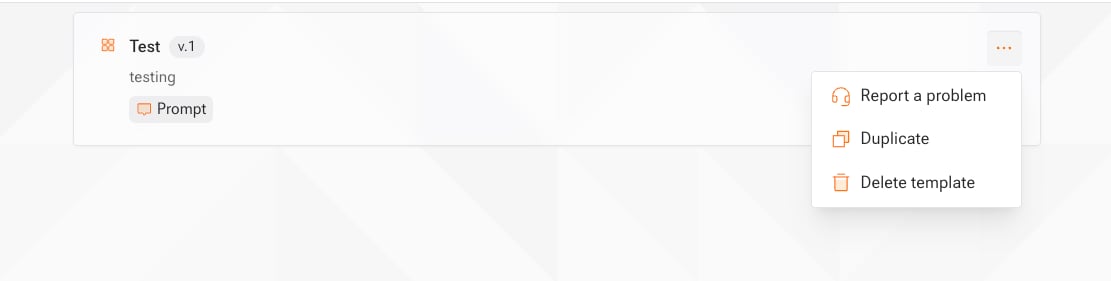
Duplicate a Template
- Go to Templates and open the actions menu on a template
- Select Duplicate and optionally enter a name (defaults to the original name with a Copy suffix)
- Click Duplicate
Apply Template Changes to Linked Workflows
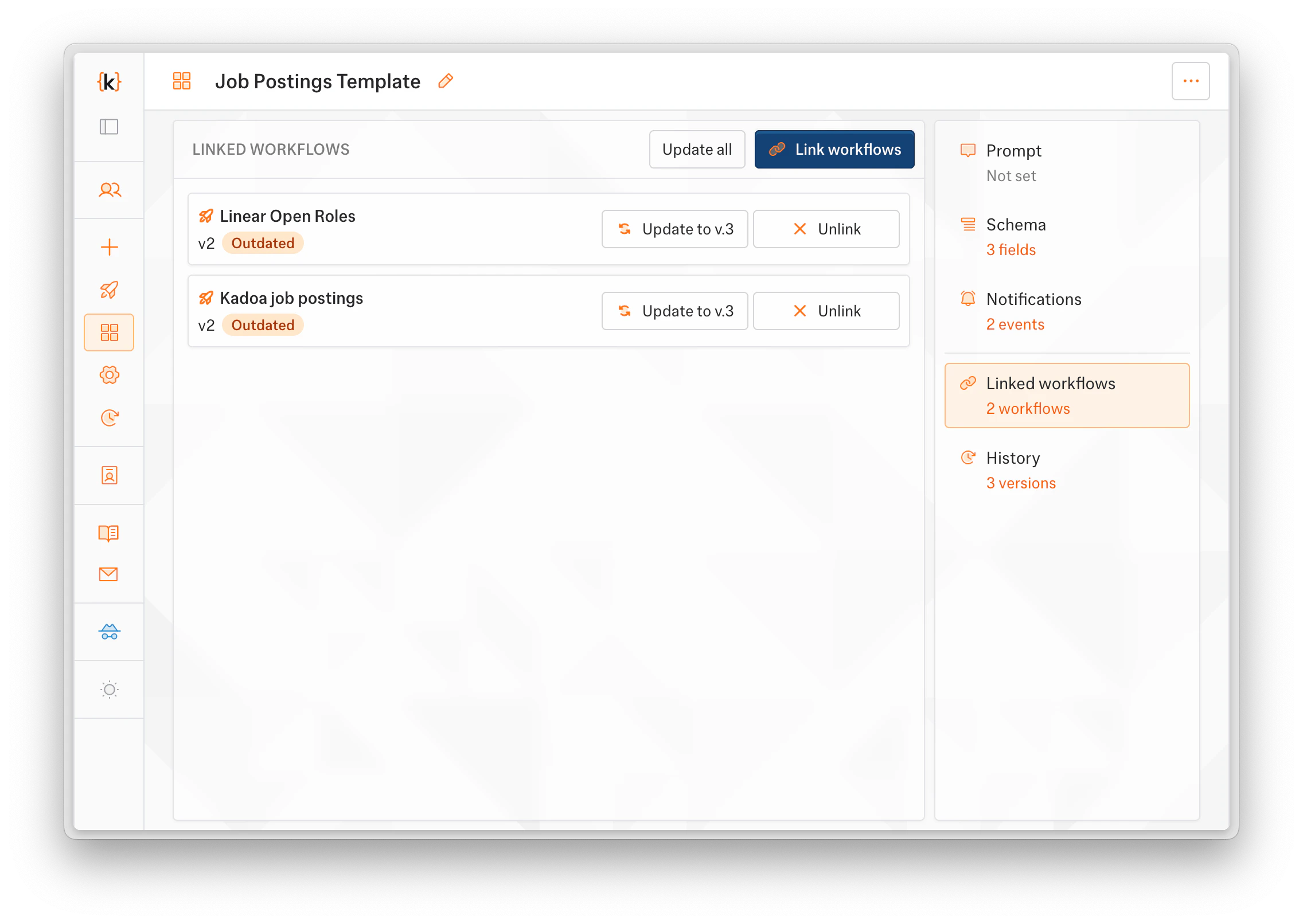
When you publish a new version, linked workflows don’t update automatically; you decide when to roll it out.- Open the template and switch to the Linked workflows tab to see everything connected. Workflows behind the latest version are marked as outdated.
- Use the version controls on a linked workflow to roll out a new version to it, or select several workflows and update them together. Update all outdated workflows moves every lagging workflow to the latest version.
- Review the affected workflows in the confirmation dialog and confirm
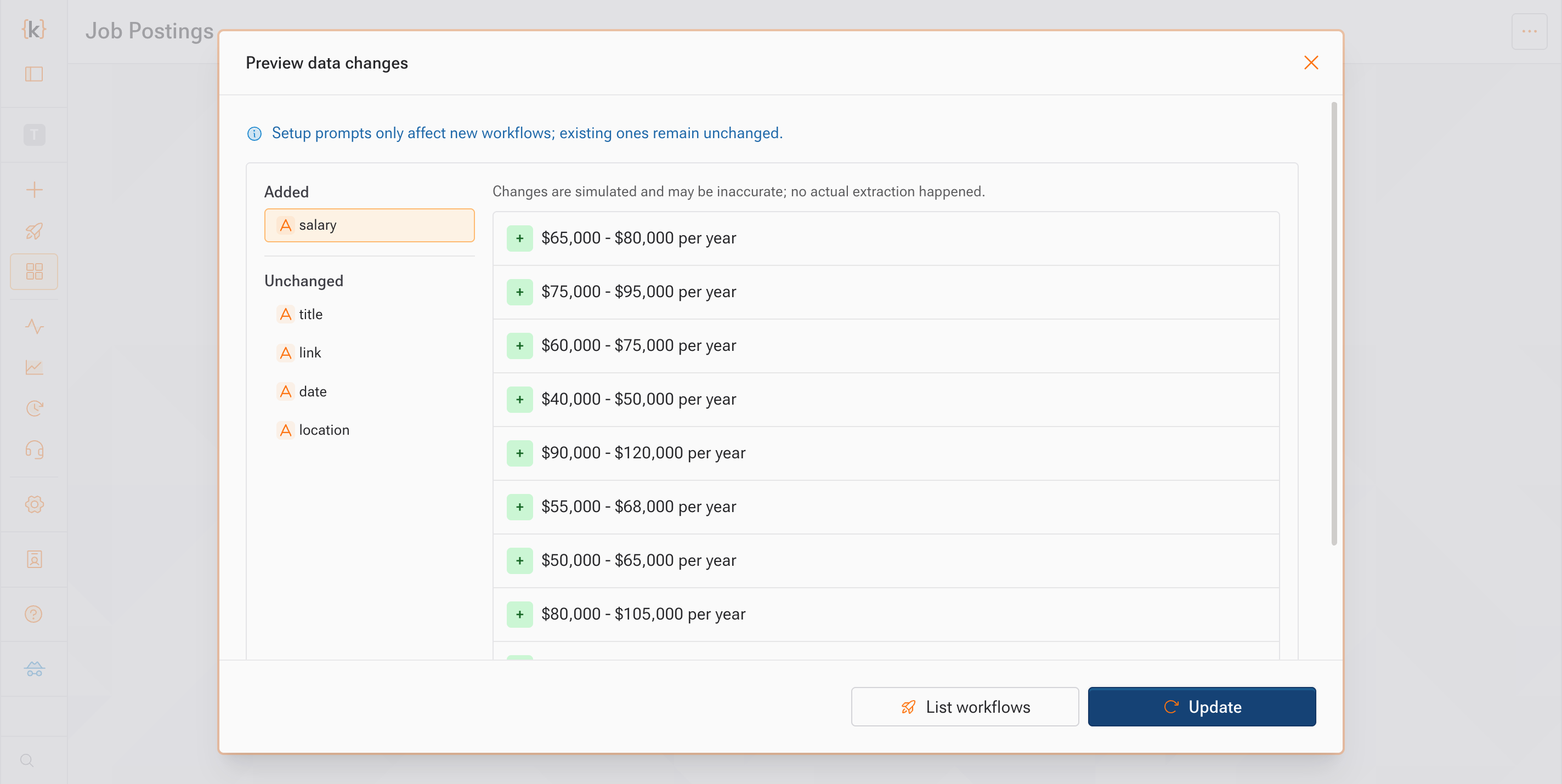
- Changes take effect on the next run. Applying a version updates the configuration; data already collected is unchanged.
- Active real-time monitors are skipped. Pause them first if you want them in the batch.
- The parts managed by the template stay read-only on each linked workflow. To change them, edit the template and apply, or unlink the workflow first.
- You can also unlink workflows from this tab, one at a time or in bulk. Unlinked workflows keep their configuration.
Delete a Template
- Go to Templates
- Select the template(s) you want to delete
- Click Delete
Use a template when creating a workflow
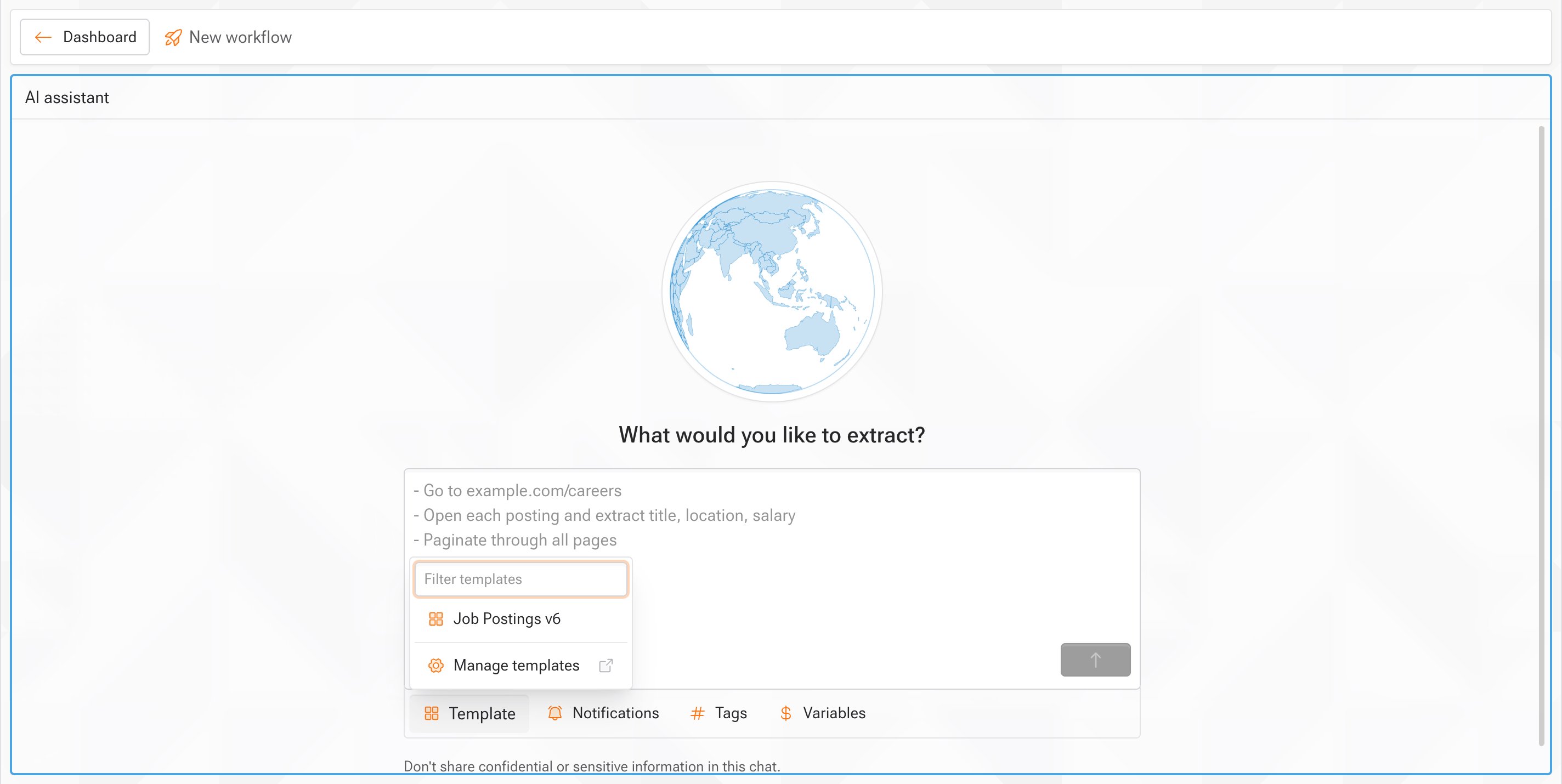
When creating a new workflow, select a template from the setup prompt to pre-fill its available configuration:- Open Create workflow
- Open the Template selector and choose a template
- Review the attached prompt, schema, data quality, notification, and frequency settings
- Complete the prompt and create the workflow