

Workflow Data Quality
- Go to Workflows and click on a workflow
- In the right sidebar, open the Data quality section.
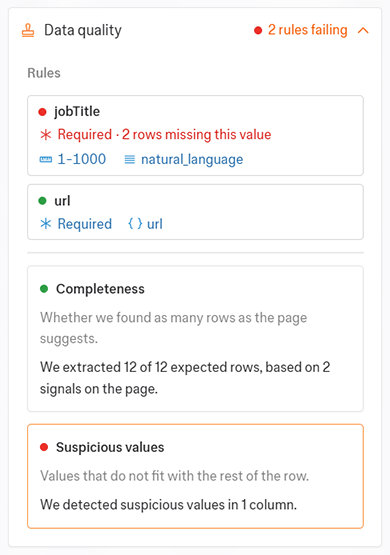
- Rules: One row per schema field that supports validation, with the configured checks summarized.
- Platform metrics: Built-in metrics Kadoa computes automatically.
Rules
Each row represents one schema field:- The status dot is green when all of that field’s rules passed on the current run, red when any rule failed, and absent when no rules are configured.
- The chips after the field name summarize the configured checks, for example Presence ≥ 80%, Format url. Failing chips turn red.
Edit a field’s rules
Click any field row to open the dialog to edit rules. You can read about the different kind of available rules in the getting started guide.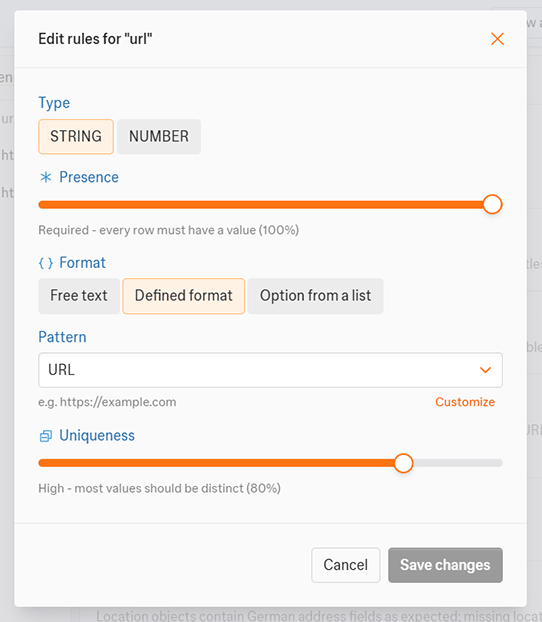
Rule changes take effect on the next run. The currently displayed results are unaffected until you trigger another run.
Platform metrics
Kadoa currently offers the following built-in platform metrics. You can click any card to open a detail view.- Completeness: reports whether we found as many rows as the page suggests. The detail view shows the contributing signals.
- Suspicious values: reports values that do not fit with the rest of the row. The detail view shows the flagged columns with example values.