

Open the Agent
Click Agent in the bottom-right corner of any page. On a workflow built with the Agent, choose This workflow to chat with the workflow in context, or Workspace for everything else. A dot on Agent means a workflow needs your reply. Each workflow has one Agent chat. If a teammate already opened it, you join the same conversation.Workspace chat
Workspace is for work that spans workflows. It uses the same tools and role permissions as the Kadoa MCP server. Workspace chats are private to you, and each workspace keeps its own. Start a new chat with +; open or delete past chats under History.
Ask about your workspace
Ask about any workflow, run, or change. Try “Which workflows failed this week?” or “Who changed the schedule on Job Postings?”Create workflows in batch
Name several websites in one message, such as “Track job postings (title, location, salary, apply link) on acme.com/careers, globex.com/jobs, initech.com/open-roles”. The Agent proposes a shared template and the website list. Confirm, or name an existing template to reuse. It then creates one workflow per website and reports any failures. Each previews for you to approve. For real-time monitoring, it creates one monitor per website. This needs a notification channel.Find sources
Describe the data, such as “Find me sources for UK planning applications”. The Agent searches the web, opens pages in a browser when needed, and lists candidate URLs with what each likely carries and what it checked. A workflow run confirms the data. It never submits forms that change anything or enters credentials.Debug with the Agent
Debugging is a conversation. Describe what is wrong, and the Agent investigates, makes the change, and reruns a sample so you can confirm the fix before anything goes live.1
Describe the problem
Say what is wrong and what you expected, for example “The salary field is empty on most rows, but the postings show a salary near the title.”
2
Let it investigate and change
The Agent looks into the workflow, adjusts the extraction, schema, navigation, or transformation, and reruns the preview. It tells you what it changed as it works.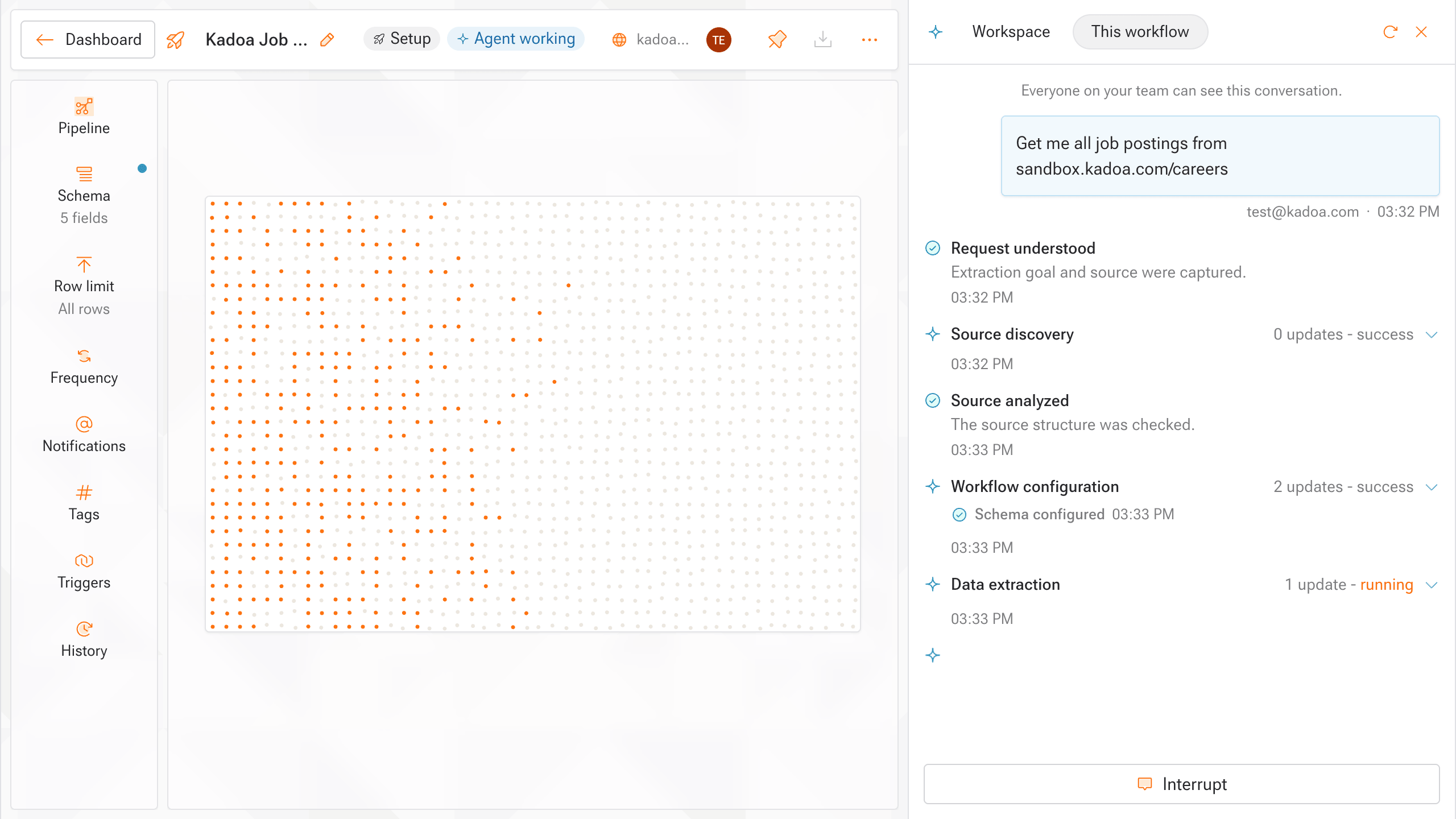
3
Review the sample
Check the updated rows.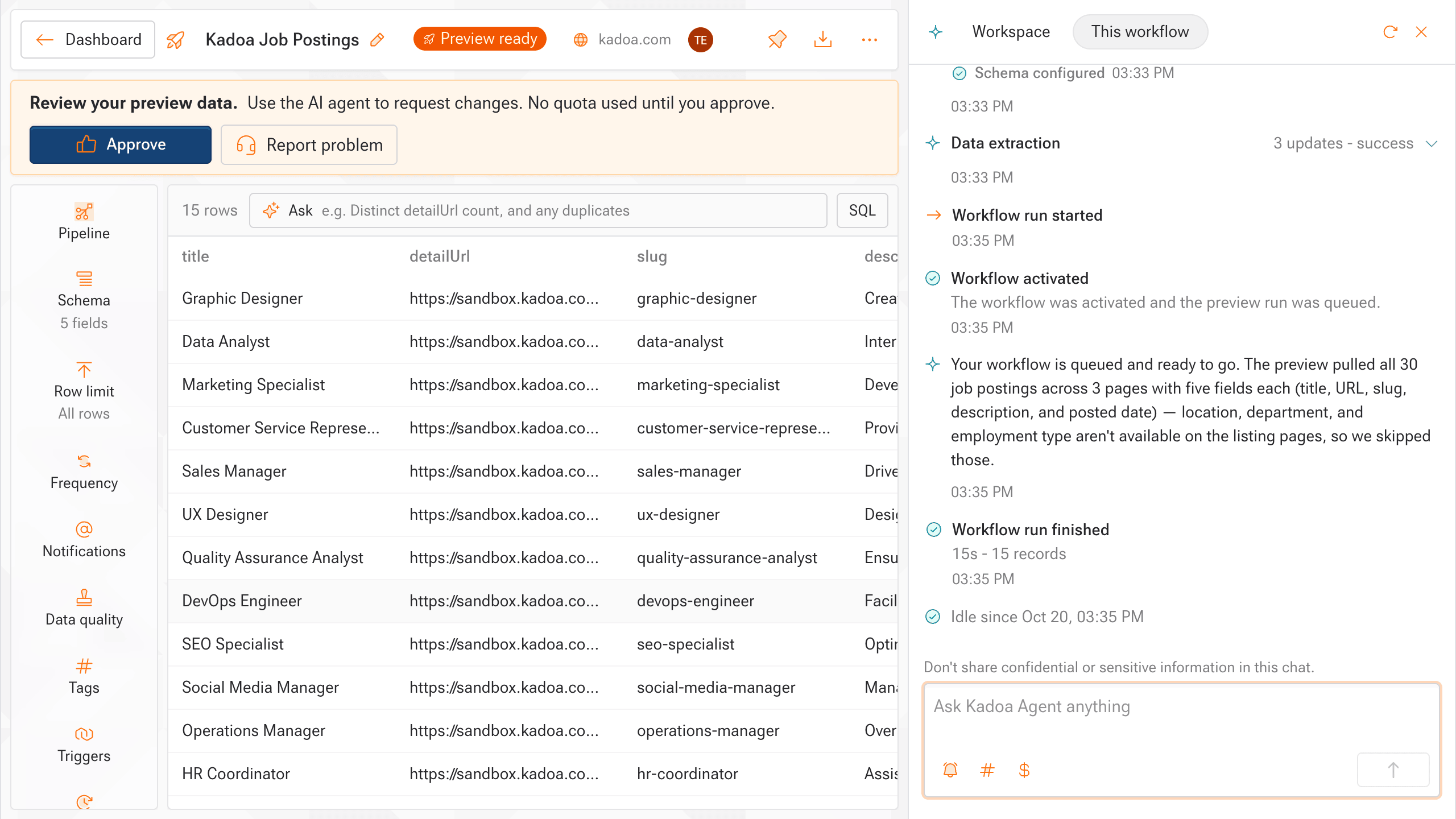
4
Approve or keep refining
If the sample looks right, approve to apply the change. If not, reply with what is still off and the Agent reruns. Repeat as many times as you need.
For automatic checks on every run instead of spot-fixing, add Data Quality rules.
What to say
Brief the Agent like a colleague: lead with the symptom and the result you expect, and name the field, the page, and what the correct value should look like. The same advice as writing a good prompt applies.When the Agent can’t fix it
The Agent tells you and automatically hands the issue to Kadoa support. For how failed runs are classified and auto-recovered, see Error Handling.Next steps
Prompts
Write prompts that get the best results
Human-in-the-Loop
Review and approve data before it goes live
Error Handling
Understand failures and recovery
Data Quality
Validate every run with per-field rules
AI Personalization
Give your workspace’s agents standing instructions