

Before you begin
- A workflow. See Create workflows.
- For the SDK and API, a team API key and an installed SDK:
npm install @kadoa/node-sdkoruv add kadoa-sdk.
Schedule types
- Weekdays only skips Saturdays and Sundays. It applies to repeat intervals only. For cron, set the weekdays in the expression, such as
MON-FRI. - Cron schedules follow the timezone you pick, including daylight saving time. The default is UTC.
- Real-time workflows have no schedule. They watch the source continuously. To create one, choose Real-time in the setup prompt. See Monitors.
- If the workflow is linked to a template that sets the frequency, change the frequency in the template.
Set a schedule
- Dashboard
- SDK & API
- MCP
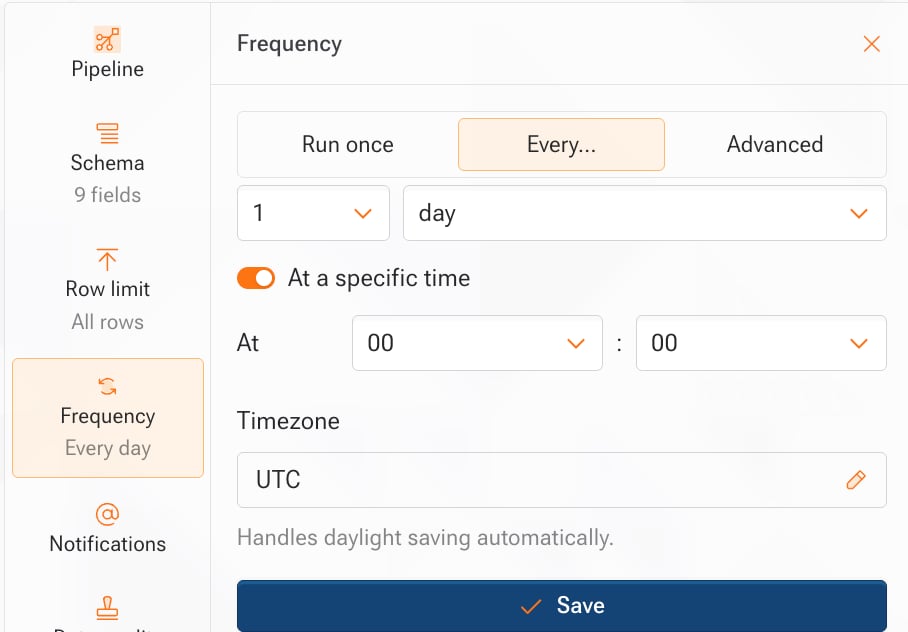
- Open the workflow and select Frequency in the side rail.
- Select Run once, Every…, or Advanced.
- For Every…, pick the interval. To run at a set time, turn on At a specific time and pick the days and time.
- For Advanced, enter one cron expression per line, for example
0 9 * * MON-FRI. - Optional: turn on Weekdays only, or pick a Timezone when the panel shows one.
- Select Save.
Run a workflow now
- Dashboard
- SDK & API
- MCP
- Open the workflow.
- Select Run now in the header.
Check run status
Poll the workflow status to know when the extraction is complete.- Dashboard
- SDK & API
- MCP
- Open the workflow. The badge next to its name shows the current state, such as Running, Scheduled, or Complete.
- To see earlier runs, select History in the side rail, then select Runs.