

Before you begin
For the SDK and REST API, you need a team API key.View data in the dashboard
All extracted data is available in your Kadoa Dashboard.- Open your workflow.
- Browse records in the table view.
- Filter and sort to find specific items.
Download the latest run
- Dashboard
- SDK & API
- MCP
- Open your workflow in the Kadoa Dashboard.
- Select the download icon at the top right. The menu reads “Get data from the latest published run”.
- Select a format:
- CSV: table rows for spreadsheets.
- JSON: your data plus metadata (
workflowId,runId,executedAt). See the JSON download format.
Fetch data from code
- SDK & API
- MCP
Fetch the data of an existing workflow by its ID:To choose the page and page size, pass more options:If you create and run a workflow with With the REST API, the data endpoint returns the most recent data of a workflow. See the Get workflow data by ID reference.The response format section shows what comes back.
extraction.run, the result already includes the data:Page through large runs
- SDK & API
- MCP
The SDK can iterate page by page or fetch every row at once:With the REST API, set
page and limit:limit defaults to 25 rows. Set limit=0 to stream all rows without paging.The total row count is pagination.totalCount. The response has no hasMore flag. To check whether more pages exist, compare pagination.page < pagination.totalPages.Get a specific run
- Dashboard
- SDK & API
- MCP
- Open your workflow.
- Select the History tab, then Runs.
- Select the run you want.
- Select the download icon at the top right. The menu reads “Get data from the selected run”.
- Select CSV or JSON.
Filter and sort rows
- SDK & API
- MCP
Pass a URL-encoded JSON array to Sort with
filters. Each entry specifies a field, an operator, and a value:sortBy and order. The filter operators and query parameters sections list every option.Export a Parquet file
This task uses the REST API. Create a signed URL for workflow data as a typed Parquet file. See the Create workflow data export reference.url. Pass runId to export a specific historical run:
GET /v4/workflows/{workflowId}/data/parquet.
The file keeps typed columns where the workflow schema provides native types. These include booleans, numbers, dates, timestamps, JSON-compatible objects, and arrays. Older runs may still reflect the type information available when that run was produced.
See where data is delivered
This task uses the dashboard. If your team has data destinations, the download menu also lists the destinations that receive this workflow’s results after every run, with provider and target.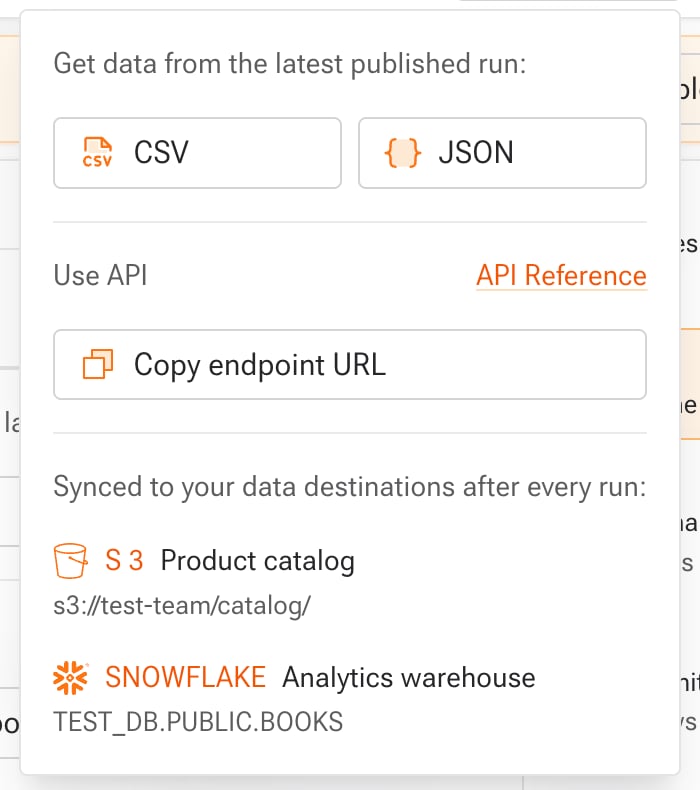 The Deliver tab of the Pipeline panel shows the same destinations with their file formats. Select Add there to request a new destination, such as Snowflake, Databricks, Amazon S3, Google Cloud Storage, or SFTP.
Query parameters
These parameters apply toGET /v4/workflows/{workflowId}/data.
Filter operators
Response format
REST API
The data endpoint returns JSON by default:Response
isKey: true), Kadoa deduplicates the results. You get at most one record per unique key combination. Key fields should be scalar STRING, NUMBER, or LINK fields. Kadoa treats records with a missing or empty key field as distinct and does not merge them.