Before you begin
- The agent works in the dashboard, the Node SDK, the REST API, and the Kadoa MCP server. It is not available in the Python SDK yet.
- The SDK namespace (
client.assistant), the API paths, and the MCP tool names sayassistant. They control the same agent. - Agent requests from code are asynchronous. Save the returned workflow, session, and thread IDs. Use them to check the agent’s current state or a pending question.
Open the agent
In the dashboard:- Select Agent in the bottom-right corner of any page.
- Select This workflow to work on the workflow you have open, or Workspace for everything else. See Two chats.
Change or fix a workflow
Send the agent a change request instead of deleting and recreating the workflow. The workflow keeps its ID. The agent investigates, makes the change, and reruns a sample so you can confirm the fix before anything goes live.- Dashboard
- SDK & API
- MCP
- Open the workflow and select Agent.
-
Describe what is wrong and what you expected, for example “The salary field is empty on most rows, but the postings show a salary near the title.”
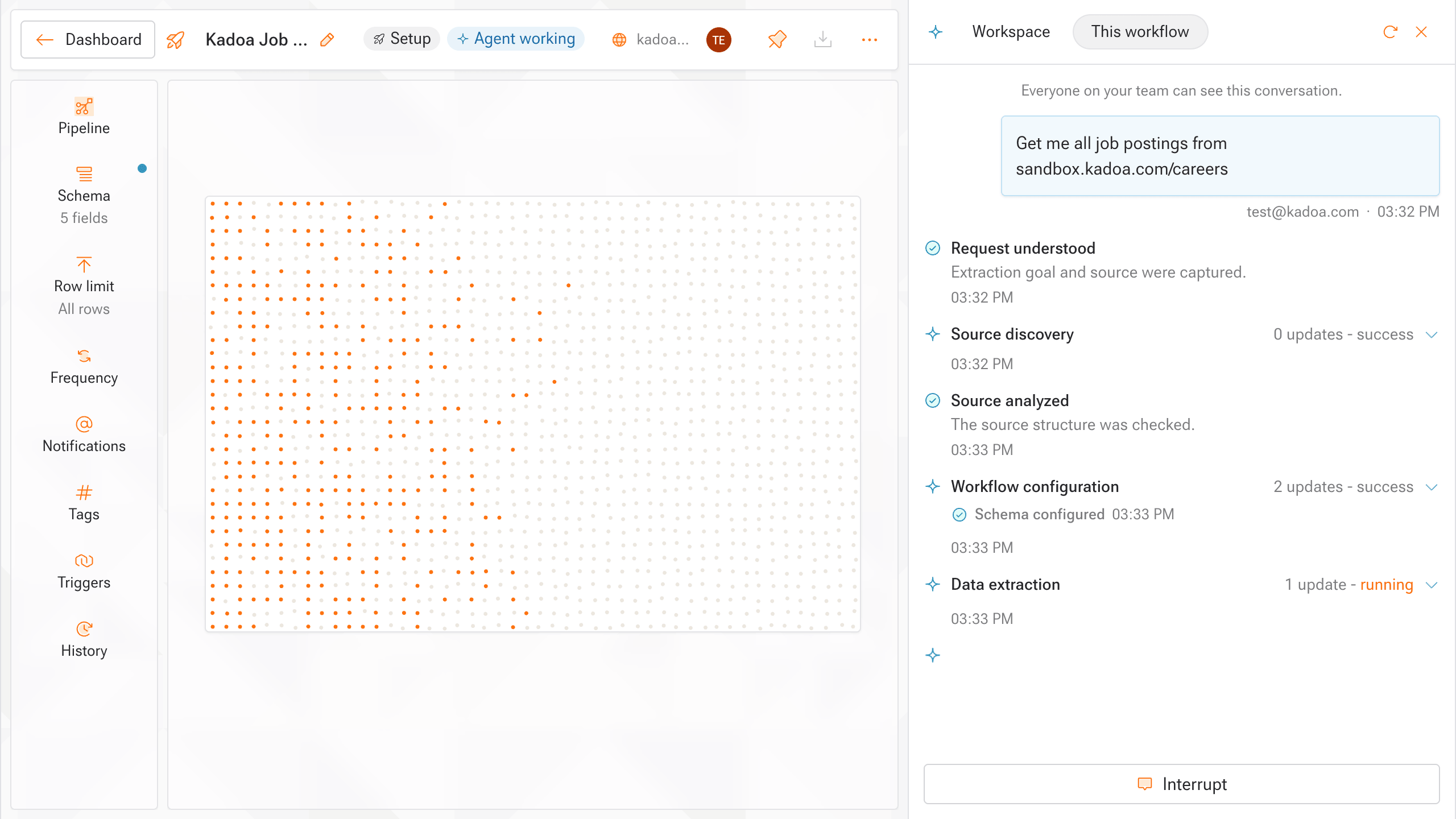
The agent looks into the workflow and adjusts the extraction, schema, navigation, or transformation. It then reruns the preview and tells you what it changed as it works.
-
Check the updated sample rows.
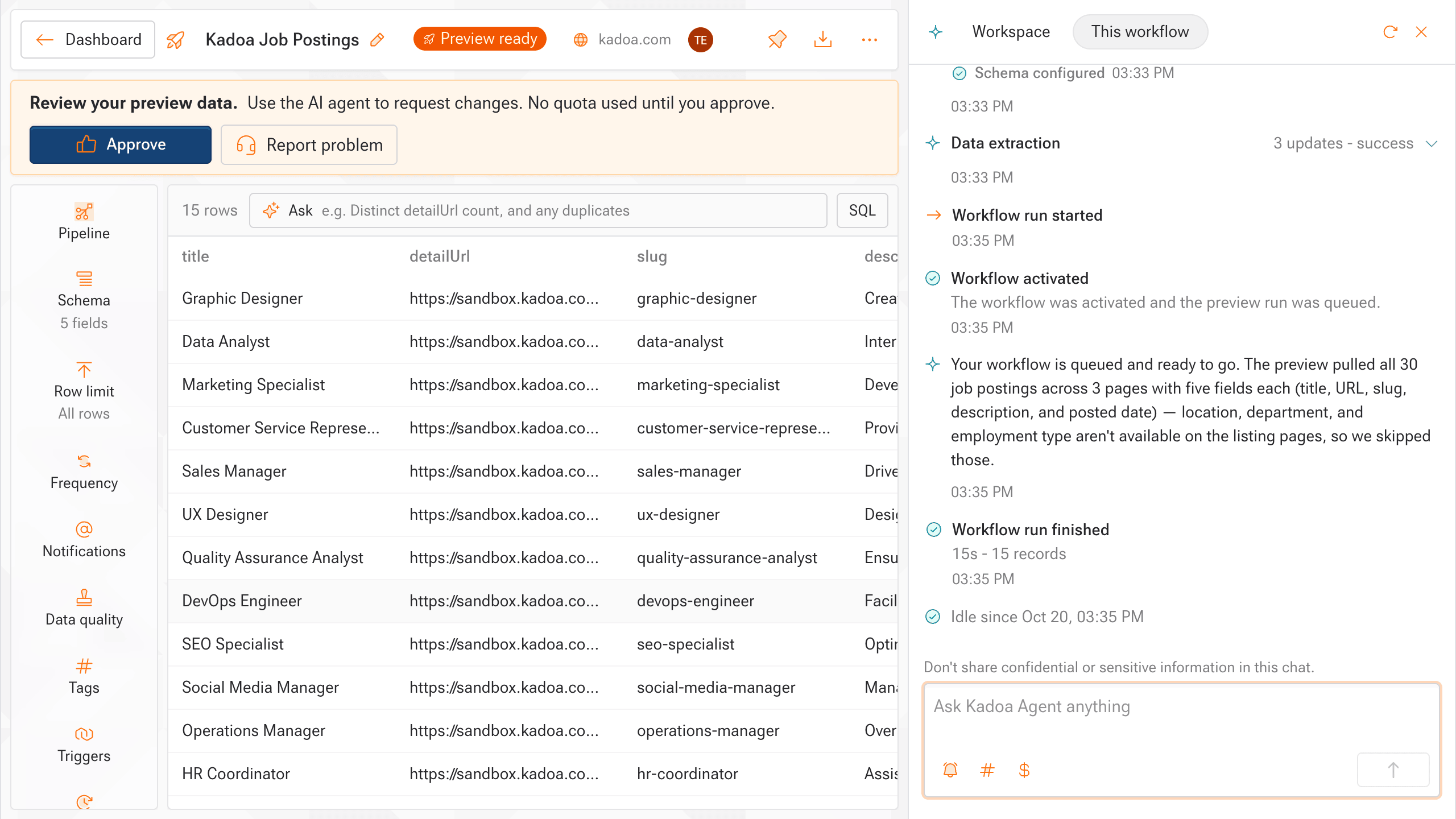
- If the sample looks right, select Approve to apply the change. If not, reply with what is still off and the agent reruns. Repeat as many times as you need.
For automatic checks on every run instead of spot-fixing, add data quality rules.
Answer the agent’s question
The agent can pause to ask for clarification. A workflow waiting on you shows Reply needed, and a dot appears on Agent. After you answer, the agent resumes.- Dashboard
- SDK & API
- MCP
- Open the workflow that shows Reply needed.
- Select Open agent.
- Pick an answer, or select Other and type your own. Some questions take free text instead.
- Select Submit.
Create a real-time monitor
Use a real-time monitor when you want continuous change detection and alerts. It is a separate workflow mode. Do not convert a scheduled workflow to real-time by changing its interval. A real-time monitor needs at least one notification channel.- Dashboard
- SDK & API
- MCP
- Select Agent. If the chat shows This workflow, select Workspace.
- Name the pages to watch, the changes you care about, and the channel for alerts. For example, “Monitor product prices on https://example.com/products and alert me by email when they change.”
Pause or stop agent work
Interrupting or stopping the agent controls agent work only. It does not pause or resume the workflow schedule, and stopping does not delete the workflow.- Dashboard
- SDK & API
- MCP
- While the agent works, select Interrupt below the chat.
- To continue, send a message with new instructions or select Continue.
Read the conversation and strategy
The timeline shows customer-visible messages and clarification questions. It excludes internal and operations activity. In the dashboard, the workflow chat shows the same conversation.- SDK & API
- MCP
Pass When a build has produced a customer-safe strategy, you can retrieve its approach, data source, and realtime interval. A
nextCursor from one response as cursor to read older entries.Node SDK
null strategy means the session exists but has not produced one yet.Node SDK
Use Workspace chat
Workspace chat is for work that spans workflows. It is dashboard-only, and API keys cannot open it. It uses the same tools and role permissions as the Kadoa MCP server. Your AI tool can do the same work over MCP. Either way, build and repair work goes to the same agent.- Select Agent. If the chat shows This workflow, select Workspace.
- Type your request and send it.
Ask about your team’s workflows
Ask about any workflow, run, or change. Try “Which workflows failed this week?” or “Who changed the schedule on Job Postings?”
Create workflows in batch
Name several websites in one message, such as “Track job postings (title, location, salary, apply link) on acme.com/careers, globex.com/jobs, initech.com/open-roles”. The agent proposes a shared template and the website list. Confirm, or name an existing template to reuse. The agent then creates one workflow per website and reports any failures. Each workflow previews for you to approve. For real-time monitoring, the agent creates one monitor per website. This needs a notification channel.Find sources
Describe the data, such as “Find me sources for UK planning applications”. The agent searches the web and opens pages in a browser when needed. It lists candidate URLs with what each likely carries and what it checked. A workflow run confirms the data. The agent never submits forms that change anything or enters credentials.