

Create a monitor
1
Choose Real-time
Select Add workflow in the sidebar. Open the product type menu below the prompt and select Real-time.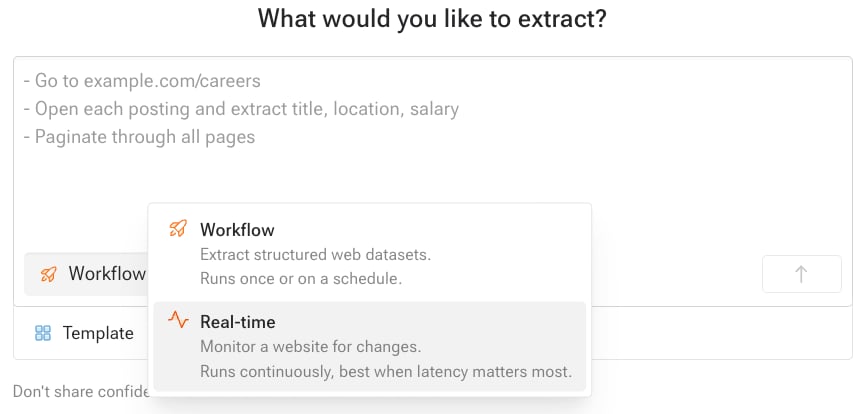
2
Describe what to watch
Name the page and the change you care about. For example: “Monitor clinicaltrials.gov/search?cond=obesity for new or updated studies. Alert me when a study’s status or enrollment changes.”Source detected confirms the URL Kadoa will watch.
3
Pick where alerts go
Type 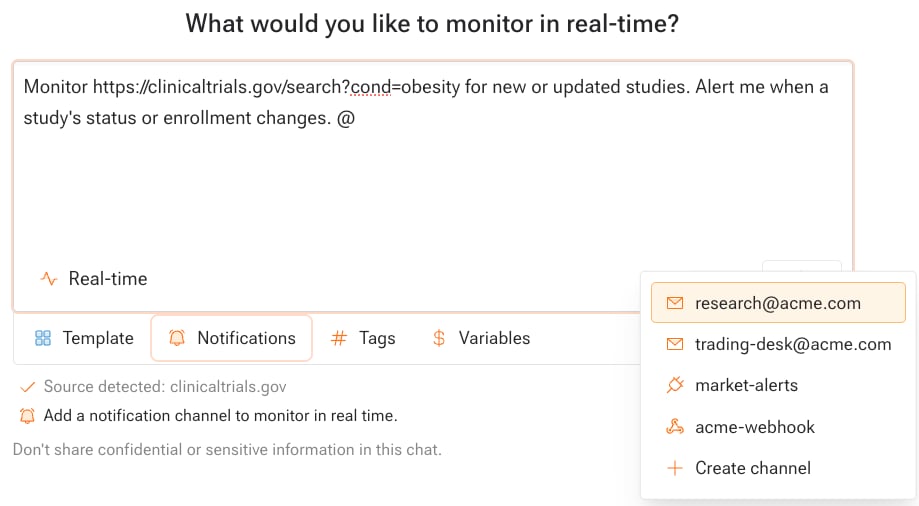
@ in the prompt, or select Notifications, and pick a channel. A monitor needs at least one, unless a template provides notifications. Select Create channel to add an email address, Slack channel, webhook, or WebSocket.4
Send it
Select the send button. Kadoa’s agent builds the monitor and narrates each step. If it needs something from you, it asks in the chat. Once the monitor is live, its header shows Running and Real-time.
See what changed
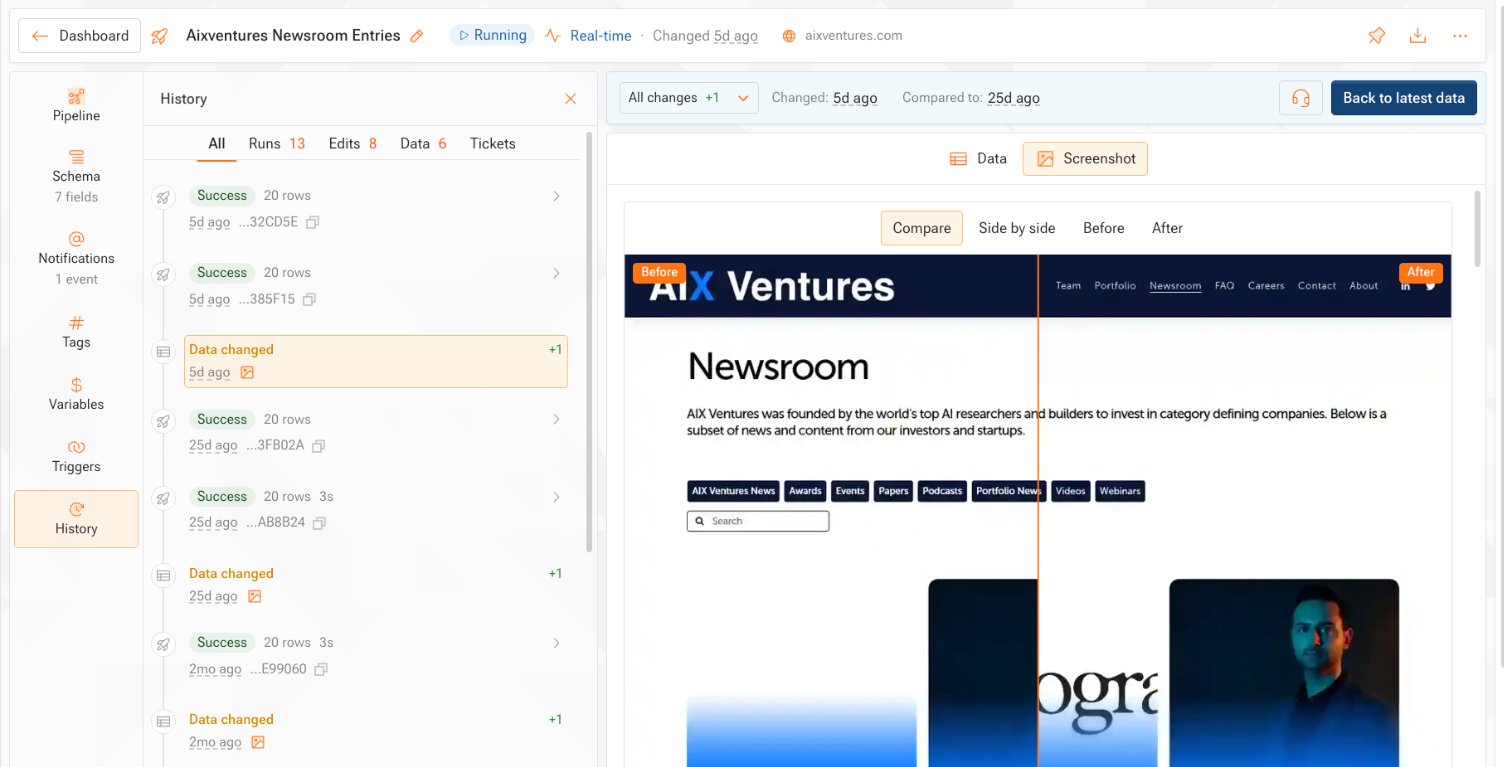
Every change appears in the monitor’s History as a Data changed entry, with a count of added, removed, and updated records. Select an entry to open it.- Data shows the records that changed.
- Screenshot shows the page before and after the change. Switch between Compare, Side by side, Before, and After.
Tune your alerts
Open the monitor’s Notifications tab to choose which changes alert you.- Track fields: alert only when certain fields change, such as status or price.
- Filters: alert only when values match, such as a price above 100.
- Type of change: alert on updated, added, or removed records.
- AI summary: add a one or two sentence summary of each change.
How monitors differ from workflows
- A monitor has no schedule. It runs continuously until you pause it.
- You cannot start a monitor run by hand.
- A monitor uses a slot while it runs, for at least 30 days. See Usage & billing.
- If a monitor goes down and comes back, Kadoa sends
workflow_recoveredto your health notifications. - Observability shows each monitor’s uptime instead of a run success rate.
Create monitors from code or your AI tool
- SDK & API: call
createRealtimeWorkflowin the Node SDK, orPOST /v5/agentwithproductType: "realtime". See Work with the agent. - MCP: ask your AI tool to monitor a page. It calls
create_realtime_monitor, andlist_changesreturns what changed. See MCP tools.
Related
- Change detection: how Kadoa decides what changed.
- Notifications: channels, filters, and what alerts contain.
- WebSockets: stream changes into your own systems.