

Create a workflow
1
Open the setup prompt
Select Add workflow in the sidebar.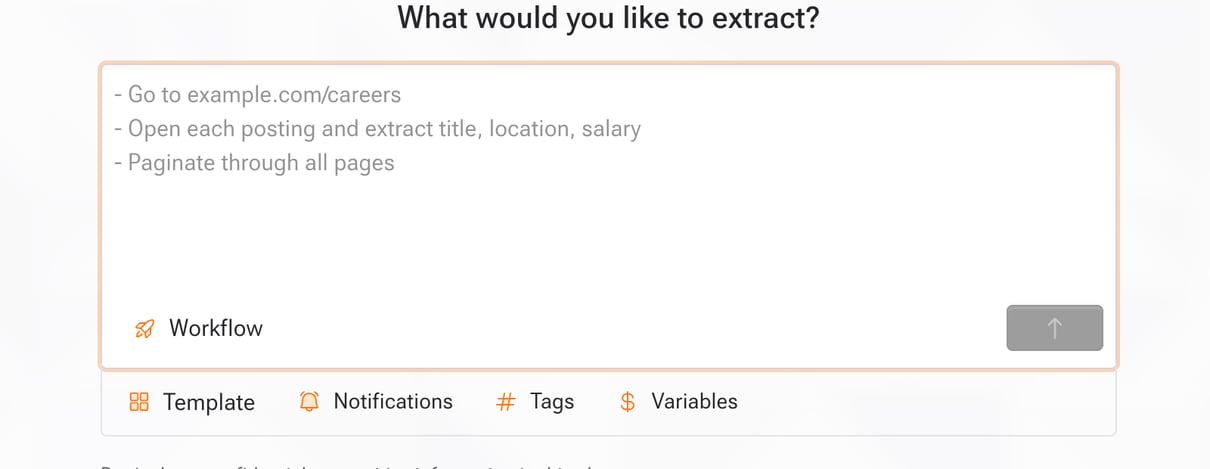
2
Describe the data
Describe what you want in plain language and include the source URL, for example “Get me all job postings from sandbox.kadoa.com/careers”. Below the prompt, Source detected shows the URL Kadoa found. If you leave out the URL, the agent tries to find a source.
- Fields: name them in the prompt, for example “extract title, price, and rating”, and the agent uses exactly those. Leave them out and the agent proposes fields from the source.
- Steps: for multi-step extractions, write the steps in order, for example “Click ‘Next’ to continue through pagination. For each product, open the detail page.” See Prompts.
- Several websites: each website needs its own workflow. To have the agent create one per website from a shared template, select the create button, for example Create 2 workflows. To hand the setup to Kadoa, select Let support set it up.
3
Pick the options you need
The controls below the prompt are optional: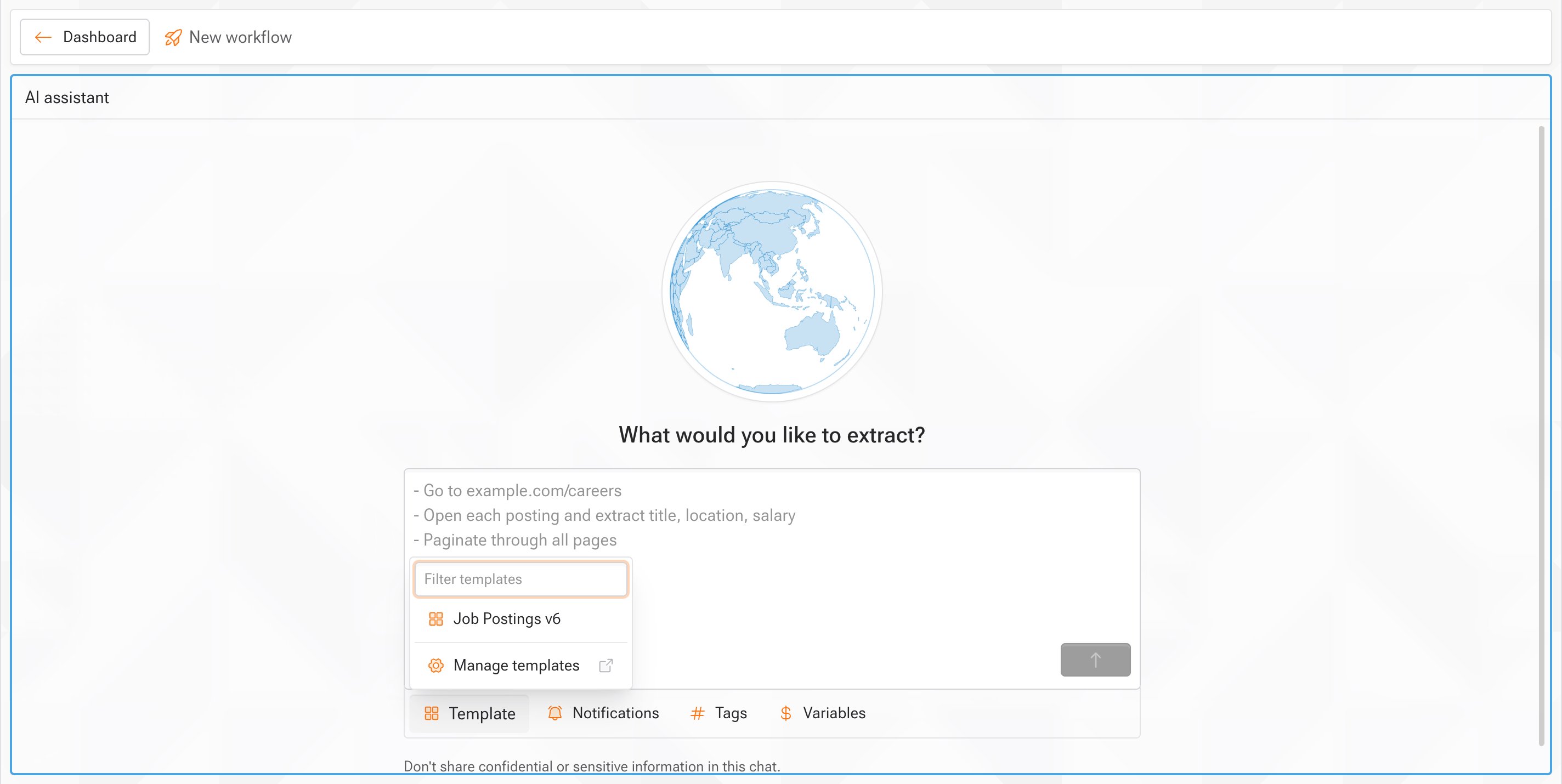 Then select the send button.
- Product type: Workflow extracts a dataset once or on a schedule. Real-time watches a website continuously and needs a notification channel, unless a template provides one.
- Template: start from a template. Under Workflow-specific instructions, add the source URL and anything specific to this source.
- Notifications, Tags, and Variables: pick existing ones or create them in place.
@ for notification channels, # for tags, and $ for variables.4
Watch the agent build it
The agent confirms the source, writes the extraction code, and runs a preview. It narrates each step.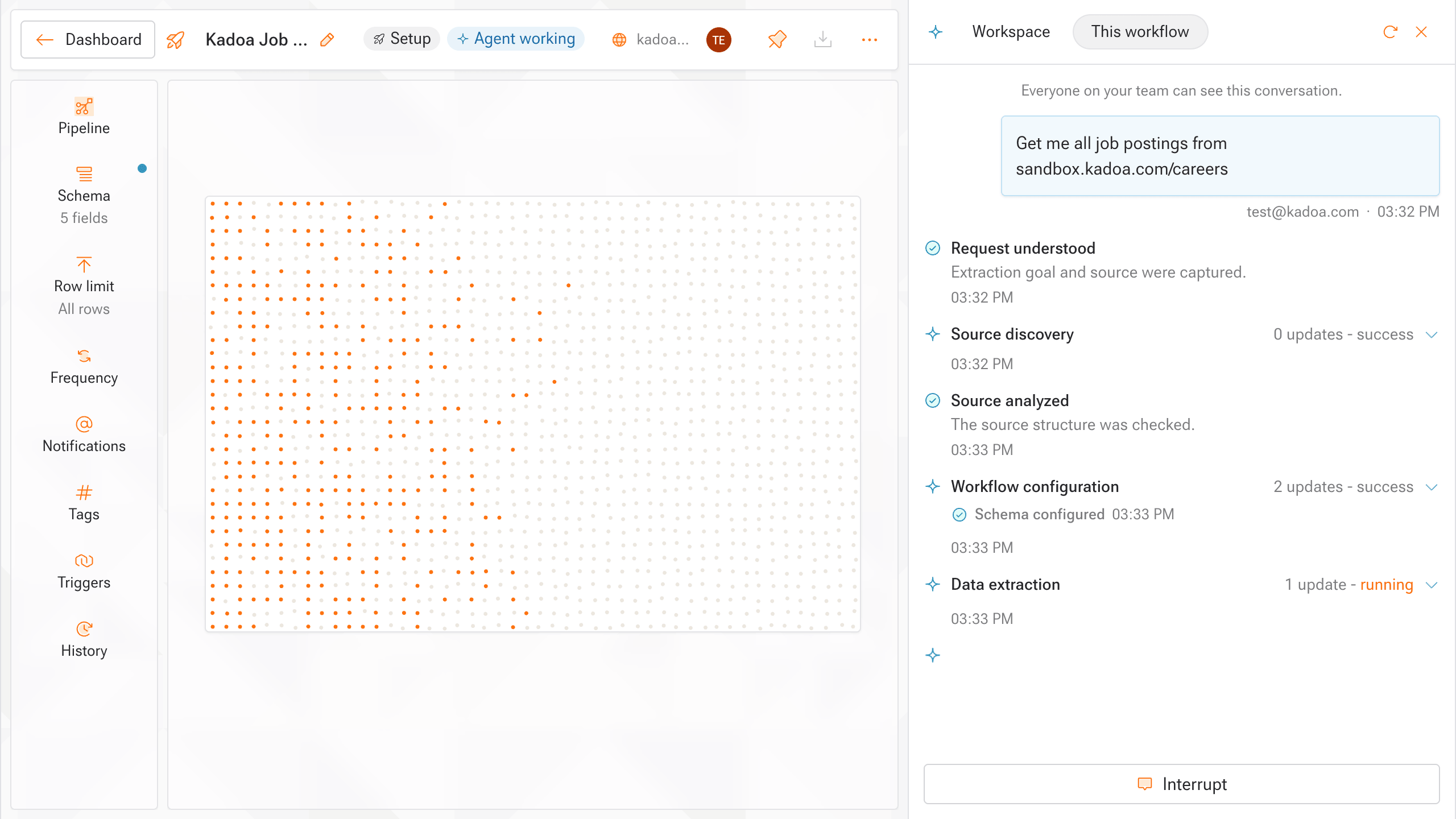
5
Review the sample
Check the fields and values. Previews are free. If something is wrong, tell the agent what to fix, for example “add a salary field”. It reruns the preview.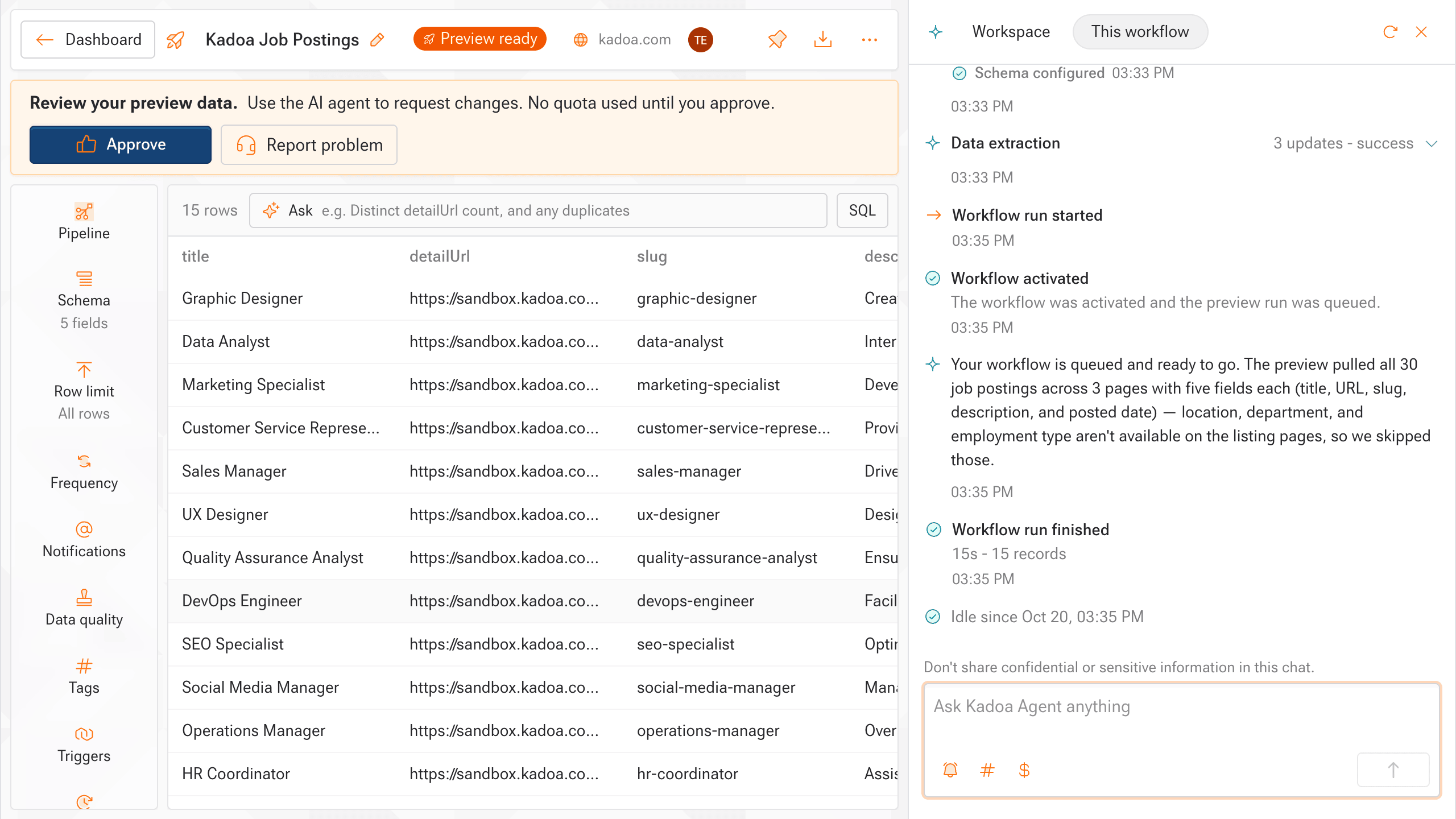
6
Approve
Select Approve. The workflow goes live and extracts the full dataset. To get the data into your tools, see Export data and Integrations.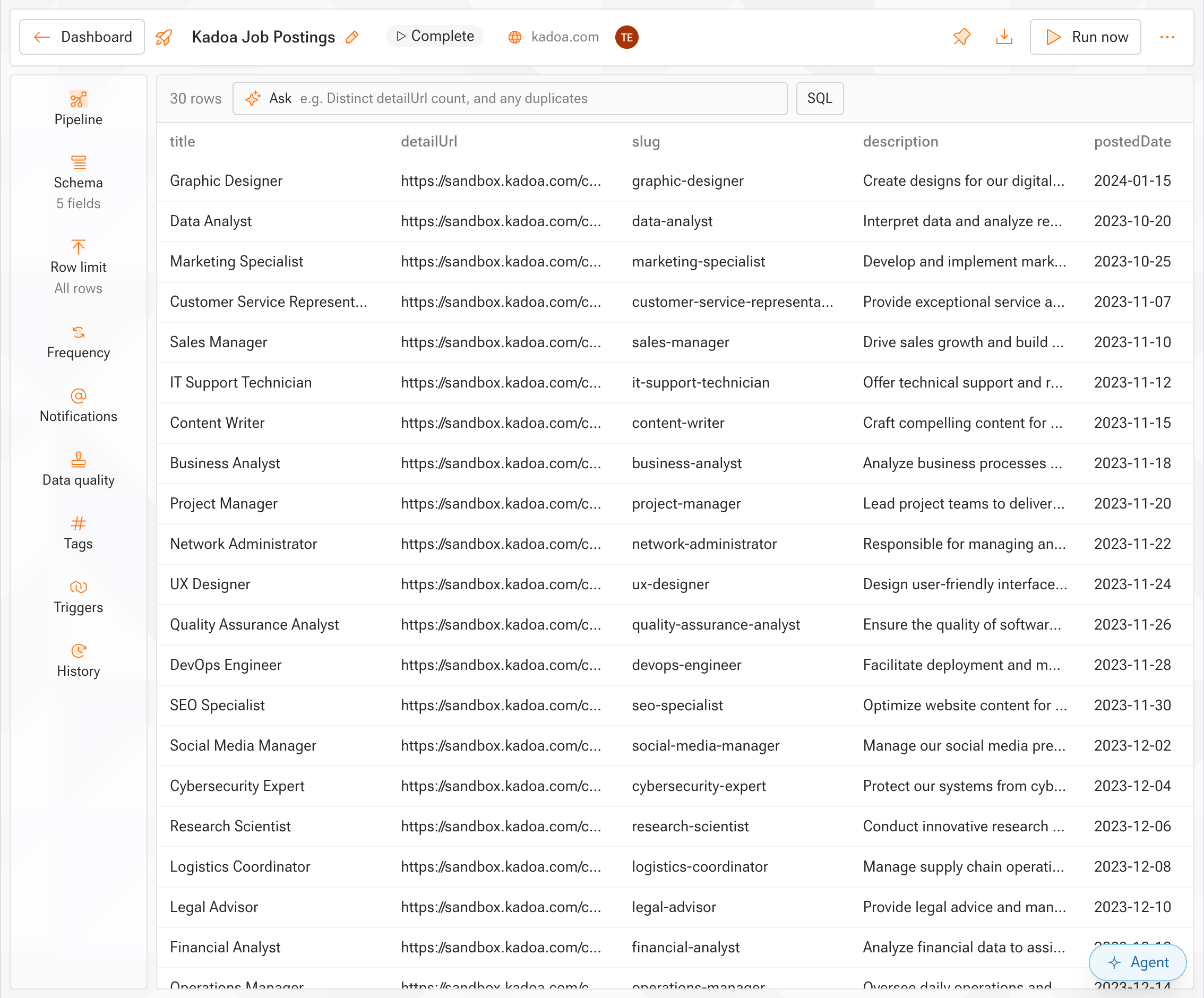
Change settings later
Open the workflow and pick the setting in the side rail, or ask the agent in the chat.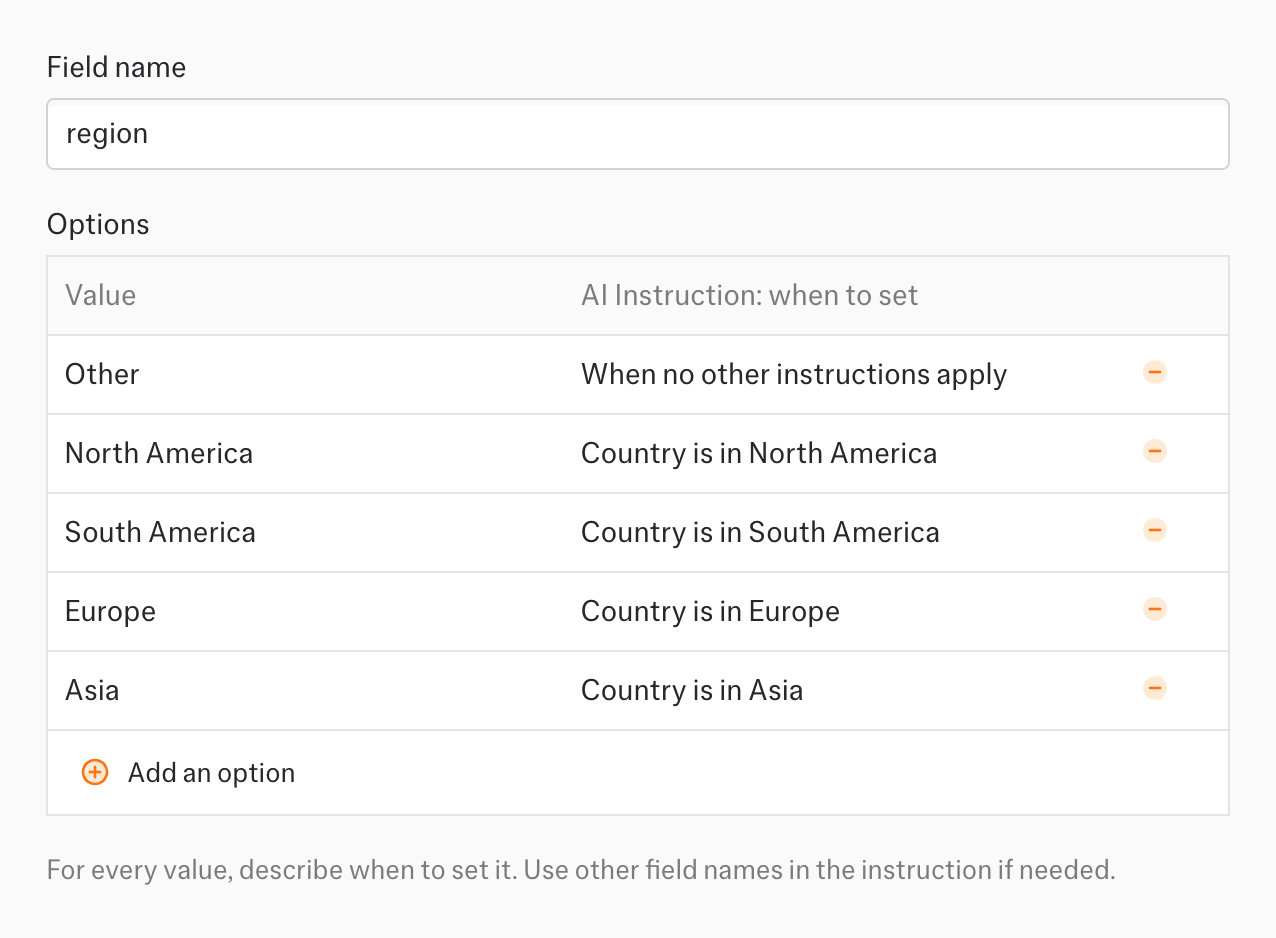
Related
- Work with the agent: create several workflows at once and find sources in Workspace chat.
- Preview and approval
- Templates