

Quick Access
The Compliance Center provides shortcuts to key audit tools:Compliance Rules
The Compliance Center displays the automated compliance rules currently applied to your team’s workflows, along with their current status (enabled or disabled).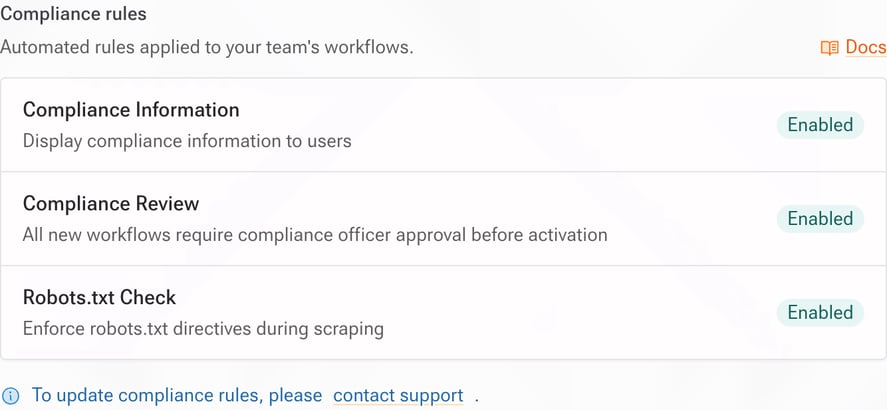
Compliance rules are configured by Kadoa on your behalf. To enable, disable, or update rules, please contact support.
Compliance Information
When enabled, a custom compliance reminder is displayed to users when they create a new workflow. This helps ensure team members are aware of your organization’s data sourcing policies before starting any extraction.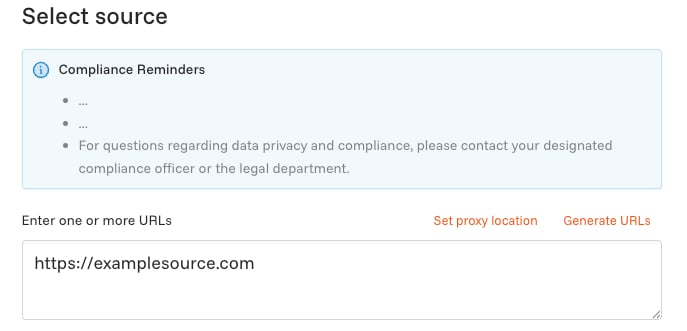
Approval Flow
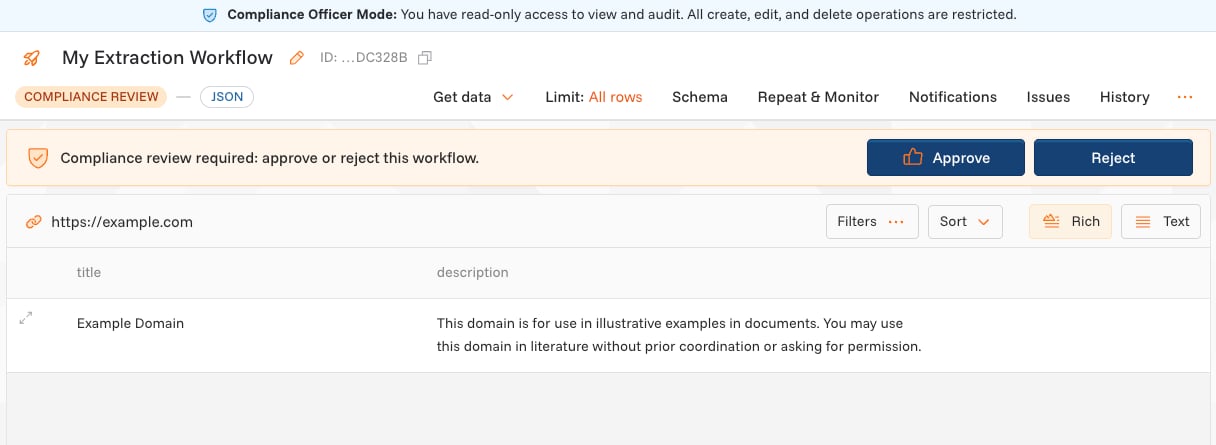
When Compliance Review is enabled, all new workflows require approval from a Compliance Officer before they can be activated:- A user creates a new workflow
- The workflow enters a Pending Approval state during preview
- The assigned Compliance Officer receives a notification
- The officer reviews the workflow configuration and preview data
- The officer approves or rejects the workflow with feedback
- If approved, the workflow becomes active
Reporting & Audit Log
The Compliance Center provides quick access to two reporting tools:Workflow History
A static snapshot of all workflows, useful for inventory audits. Includes:- Data sources accessed or attempted
- User who created/modified workflows
- Version history and configuration changes
- Number of records extracted
Activity Log
A time-series record of all platform activity. You can filter by:- Workflow
- User
- Date range
- Event type
Compliance Officer Role
Admins can assign the Compliance Officer role to team members:- Go to Settings → Members
- Click the … menu next to the member you want to update
- Select Edit member
- Change their role to Compliance Officer
- Click Save
- Read-only access to all workflows and execution logs
- Access to compliance reports and audit trails
- Ability to approve or reject workflows (when Compliance Review is enabled)