The Kadoa Chrome extension lets you:
  • Manually pick the exact data you want to extract
  • Record your interactions with a webpage so Kadoa can replay them later
Best for: Complex pages or specific data selections. Install from Chrome Web Store
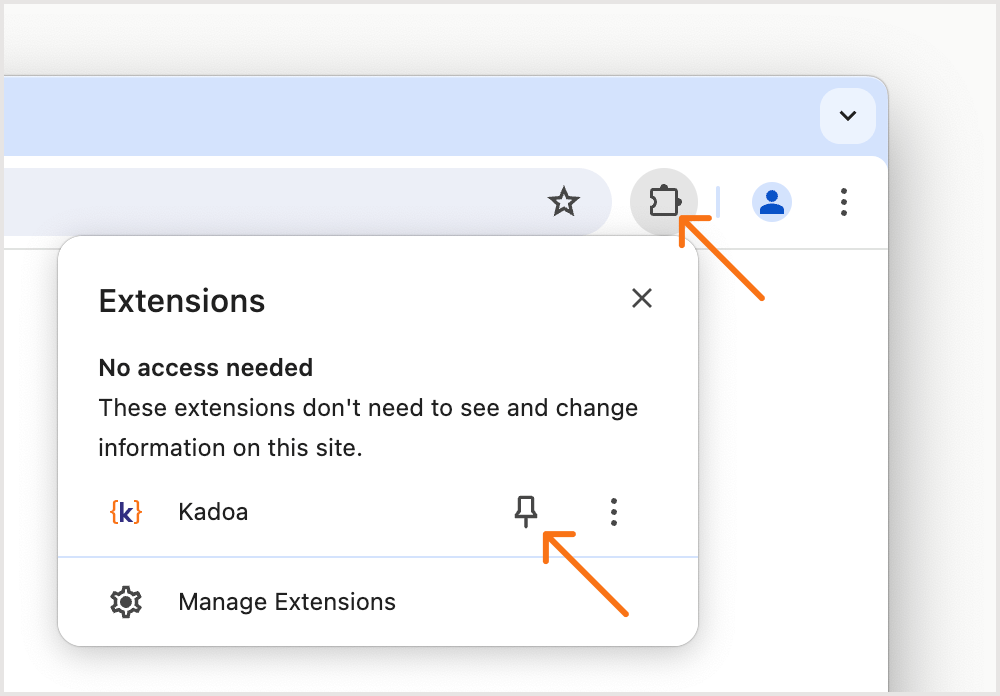
Hint: If you can’t find the installed extension, click the Puzzle icon, then click Pin to permanently show the Kadoa icon in your browser toolbar.
When to use

Use the Kadoa Chrome extension when you need precise control over the data you want to extract or monitor. This method is ideal if:
  • Kadoa’s auto-detect feature doesn’t capture the specific data you need
  • You prefer a hands-on approach to selecting data directly from a webpage
  • A webpage needs interactions before the data is available

How to use

  • Navigate to the webpage containing the data you want to extract
  • Open the Kadoa extension
  • If a webpage needs interactions before the data is available, record them so Kadoa can replay them later
  • Select one or more objects containing the data you’d like to extract
  • Review and refine the suggested fields
  • Your new workflow is ready
To use the Kadoa Chrome extension, you need to be logged in to your Kadoa account. Log in or sign up here: https://www.kadoa.com/auth On first launch, you’ll need to enter your API key. Copy it from here: https://www.kadoa.com/your-api-key

Compatibility

The Kadoa extension is compatible with recent versions of Google Chrome and other Chromium-based browsers such as Vivaldi and Brave. Currently, Safari and Firefox are not supported.

Security

For detailed information about permissions and data handling, see Chrome Extension Security.

Troubleshooting

The extension does not open. This issue is most likely because the webpage has not yet finished loading. Please reload the page and wait until it is fully loaded. Unable to change anything on a webpage after opening the Kadoa extension Ensure the page has fully loaded and all elements you want to select are visible before clicking the Kadoa extension icon. This includes expanding any collapsed areas and closing any blocking popups. Unable to select the desired element because it is covered by nested elements Select any nested element, then click the arrow icon to select its parent element. The page reloads after closing the extension This is intended behavior. To make elements available for selection, Kadoa removes all event handlers from the page. The page is reloaded to restore these handlers.