Every Kadoa workflow is driven by a prompt: a plain-language description of what data you need and how to reach it. You write the prompt, the AI agent does the rest.
How It Works
- Provide a URL and write a prompt describing the extraction task
- The AI agent reads your prompt, breaks it into steps, and navigates the site
- Data is extracted according to your schema and delivered to your destination
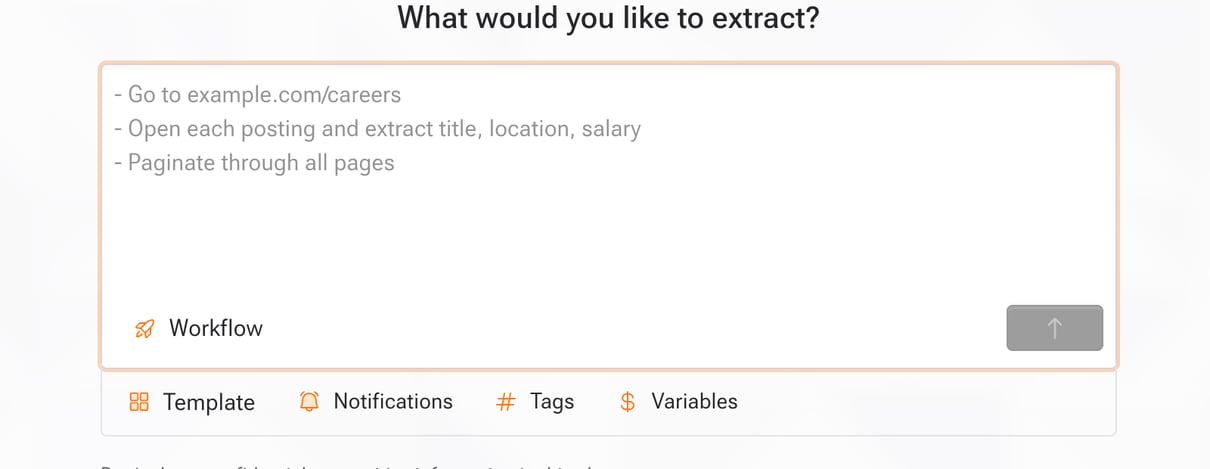
No selectors, no click sequences, no configuration needed.
What the AI Can Do
Your prompt can describe any combination of these tasks:
- Single-page extraction: Read data from one page without navigating away
- Pagination: Continue through result pages, infinite scroll, or load-more buttons
- Detail pages: Open each item in a list to get the full record
- Forms and filters: Fill search boxes, apply filters, select dropdowns
- Authentication: Log into portals using secret variables
- File extraction: Download and extract data from PDFs, Excel, and CSV files
- Multi-step flows: Chain several of the above in one workflow
Writing Good Prompts
Good prompts are specific and sequential. Tell the agent exactly what to do.
1. Start with where to go
Tell the agent which section, tab, or link to navigate to first.
| Good | Bad |
|---|
| ”Navigate to the careers section, then click on ‘Engineering roles’" | "Find job postings" |
| "Go to the ‘Products’ tab, then select ‘All categories’" | "Show me products” |
2. Describe any interactions
If the page requires forms, filters, or login, spell it out.
| Good | Bad |
|---|
| ”Search for ‘sensors’ and filter by ‘in stock’" | "Find relevant products" |
| "Log in with @username and @password, then go to Reports" | "Access the portal” |
List the specific fields or data points you need.
| Good | Bad |
|---|
| ”Extract: product_name, price, brand, availability" | "Get product information" |
| "For each row, extract: date, amount, description, category" | "Get the data” |
4. Describe how to continue
If there are multiple pages of results, tell the agent what to do.
| Good | Bad |
|---|
| ”Continue through all result pages until there are no more" | "Get everything" |
| "Open each item in the list to get the full details" | "Get all the details” |
Example Prompts
E-commerce product catalog
- Go to the "All Products" page
- Extract: product_name, price, brand, availability, rating
- Click "Next" to continue through all pages
- Stop when there are no more results
Procurement portal behind login
- Log in with @username and @password
- Navigate to "Purchase Orders"
- Filter by status "Open"
- Extract: po_number, vendor, amount, date, status
- Continue through pagination
- Navigate to the investor relations section
- Find all quarterly earnings reports from 2024-2025
- Download each PDF and extract: revenue, net_income, eps, guidance
- Also collect: report_date, fiscal_quarter, filing_type
Job board with detail pages
- Go to the careers page
- For each job posting in the list, click into the detail page
- Extract: title, department, location, salary_range, description
- Return to the list and continue with the next posting
- Continue through all pages
Variables
Use @variableName to reference reusable values in your prompt. Variables are replaced at runtime.
- Type
@ in the prompt editor to see available variables
- Secret variables are encrypted and never sent to LLMs
- Store entire prompts as variables to reuse them across workflows
Learn more about Variables → · Secret Variables →
Using in Code
Pass your prompt via userPrompt:
{
"urls": ["https://example.com/products"],
"navigationMode": "agentic-navigation",
"userPrompt": "Extract all products. Continue through pagination. Open each item for full details."
}
Migrating from legacy navigation modes? Existing workflows using navigationMode values (single-page, paginated-page, page-and-detail) continue to work. For new workflows, use userPrompt instead.
Create workflows in code →