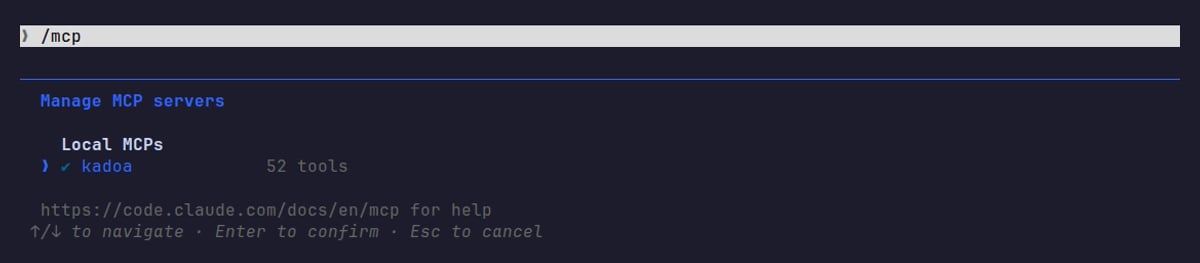
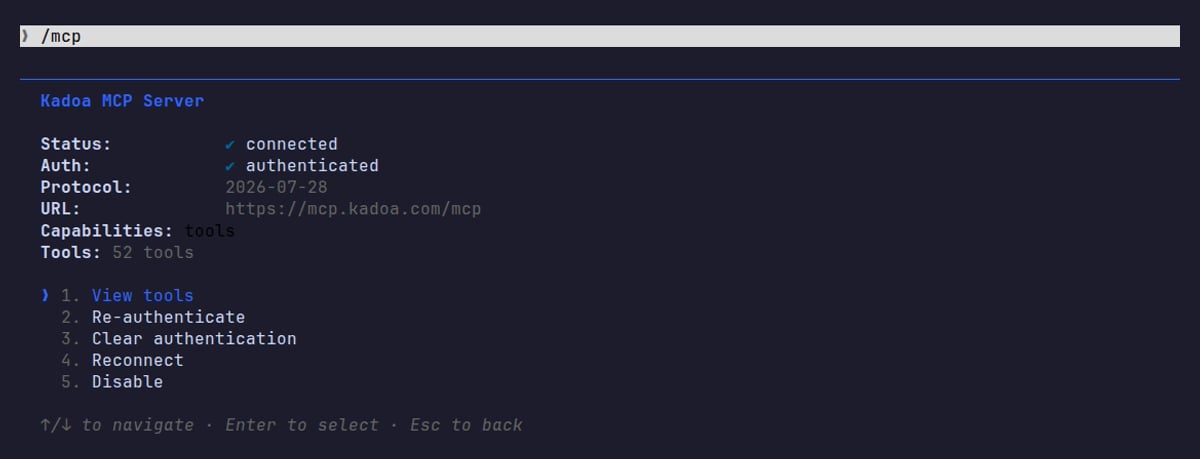
https://mcp.kadoa.com/mcp, then sign in with your Kadoa account. You need no API key. For what your AI tool can do once connected, see Connect your AI tool.
Claude.ai
Team and Enterprise
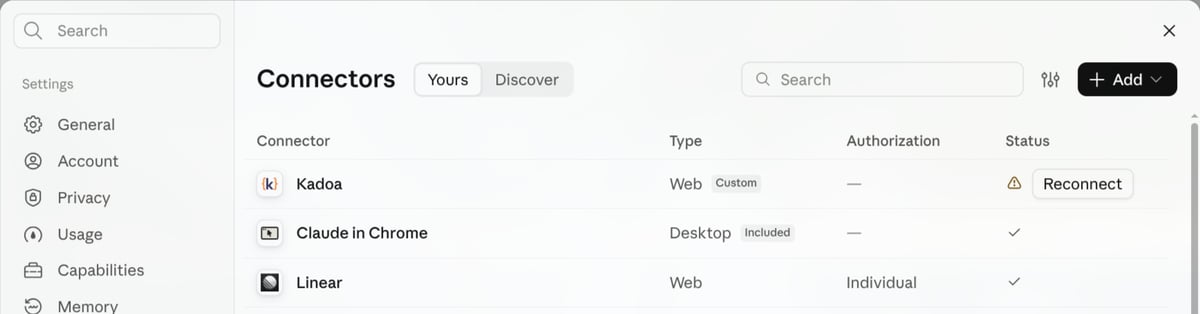
A Claude organization owner adds Kadoa once for everyone: go to Organization settings → Connectors, click Add, choose Custom → Web, and enterhttps://mcp.kadoa.com/mcp. Members then open Customize → Connectors, find Kadoa, and click Connect to sign in with their own Kadoa accounts. To let members connect without Kadoa accounts, use the service connector instead.
Free, Pro, and Max
- Go to Customize → Connectors
- Click + Add, then Add custom connector
- Enter a name (for example
Kadoa) and the URLhttps://mcp.kadoa.com/mcp, then click Continue - Sign in with your Kadoa account via OAuth
Claude Desktop
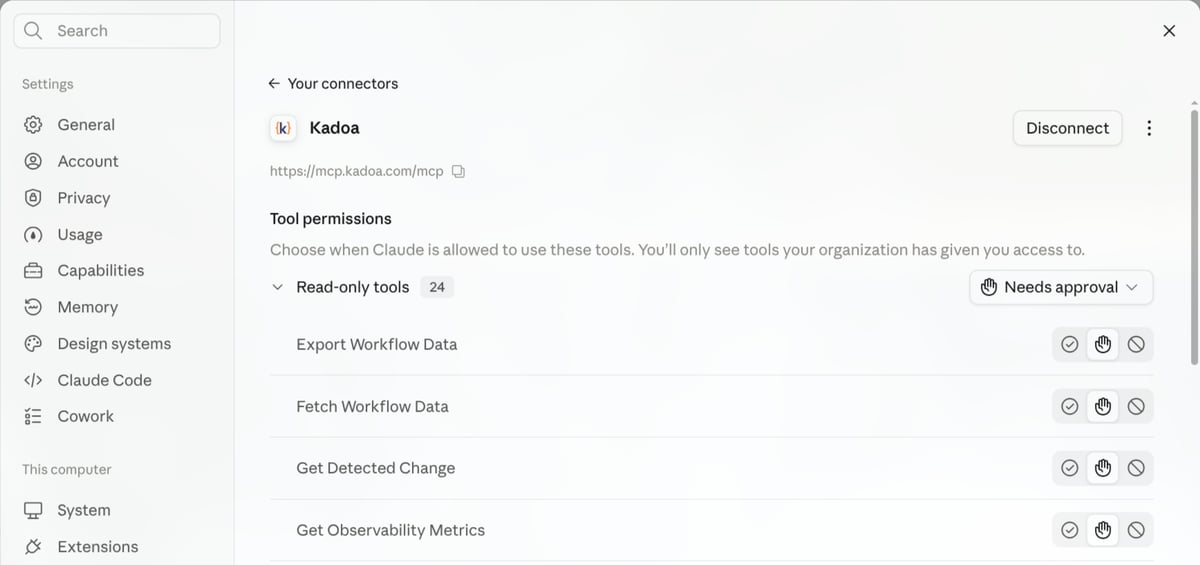
Claude Desktop uses the same connectors as Claude.ai, because they’re stored in your Claude account. If you already added Kadoa on Claude.ai, it’s available in Desktop too. Otherwise, add it in Desktop with the same steps under Customize → Connectors.claude_desktop_config.json only configures local (stdio) servers. Add Kadoa as a connector instead.Claude Code

claude and run /mcp. Select kadoa and choose Authenticate to sign in with your Kadoa account in the browser.